
You're probably here because typing feels slower than thinking.
You open an email, a CRM note, a project brief, or a brainstorm doc. You know what you want to say, but the cursor keeps blinking while your hands try to keep up. By the time you type the second sentence, the sharper version of the idea is already gone. That's where dictation in English starts to feel less like a nice extra and more like a practical tool.
The good news is that voice dictation isn't only for polished, slow speaking. It can help with messy first drafts, quick replies, support notes, and fast idea capture. The trick is learning how to use it with real speech, especially the connected, rushed English people use in work conversations.
Table of Contents
- From Slow Typing to Fluent Thoughts
- What Is English Dictation and How Does It Work
- A short definition that actually helps
- Why dictation is more than “talking slowly to a machine”
- What happens after you speak
- The Real-World Benefits of Voice Dictation
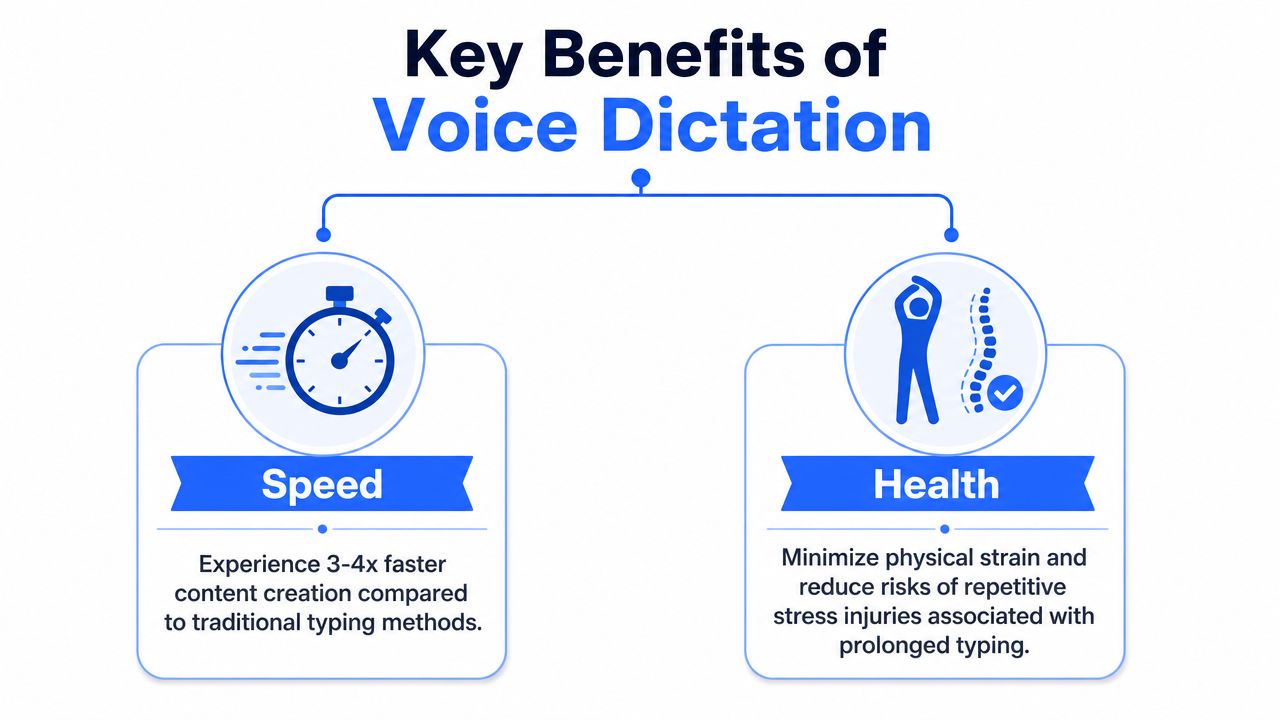
- Speed when your thoughts are moving fast
- Less strain and less stop-start thinking
- Why dictation also sharpens language awareness
- Getting Started with Dictation on Any Device
- Start with what you already have
- Your first five-minute setup
- Practice with a tiny script
- Practical Tips for Mastering Voice-to-Text
- Learn the commands that remove friction
- How to handle connected speech
- Build a routine that fits work
- Advanced Workflows and Privacy Considerations
- Use dictation across the whole writing cycle
- Know where your voice data goes
From Slow Typing to Fluent Thoughts
A colleague of mine used to draft customer updates in a strange rhythm. Think, type, delete, retype, stop, answer chat, come back, try to remember the sentence. The work got done, but it never felt smooth.
Then he started using dictation for the rough parts only. He spoke the first draft of replies, meeting notes, and follow-up ideas. He still edited by keyboard afterward, but the hard part, getting thoughts out before they disappeared, got easier.
That's the practical promise of dictation in English. It helps you capture language at the speed of thought, especially when the goal isn't literary perfection but momentum. For many people, that first win comes from using voice only for the messy middle. Brainstorming. Summaries. Quick status updates. Notes after a call.
Practical rule: Don't aim to replace typing on day one. Use dictation to remove the part that slows you down most.
This matters even more if your day is split across apps. You may start in email, jump into Slack or Teams, add a note in a CRM, then open a document. In that kind of workflow, speed isn't just about words per minute. It's about staying mentally on track.
If that sounds familiar, this is worth a look: writing faster with voice dictation is often less about speaking perfectly and more about reducing friction between idea and text.
A lot of beginners think they need a “radio voice” for this to work. You don't. You need a decent mic, a few punctuation commands, and a better understanding of how natural spoken English behaves when software tries to turn it into text.
What Is English Dictation and How Does It Work
A short definition that actually helps
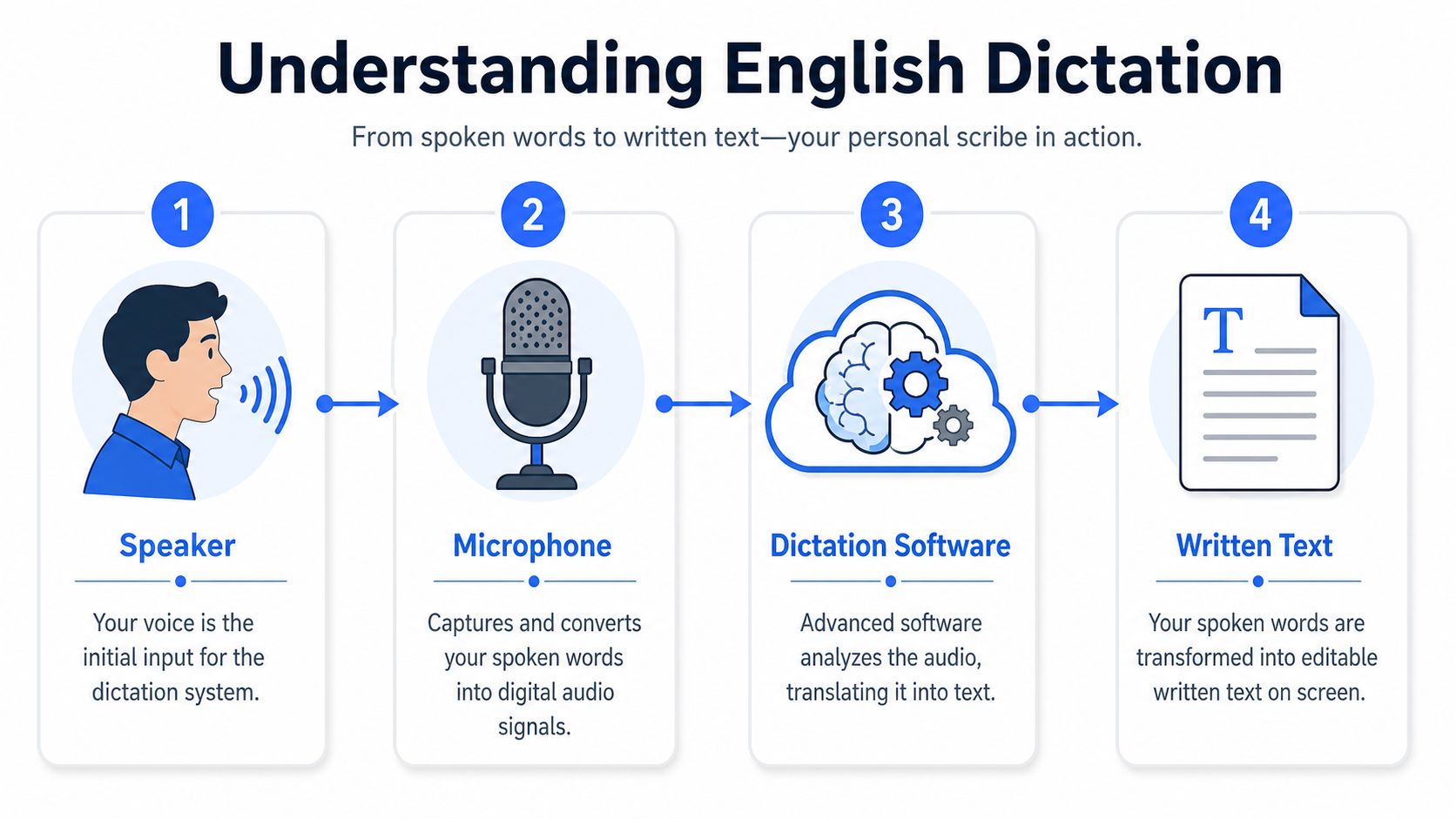
English dictation means speaking aloud so software turns your speech into text. You talk, your microphone picks up the sound, the system matches those sounds to likely words, and the words appear where your cursor is.
A useful comparison is a very fast scribe with one limitation. It does not hear meaning the way a person does. It hears sound patterns, checks them against language models, and makes its best guess in a fraction of a second.
Why dictation is more than “talking slowly to a machine”
A common beginner mistake is to treat dictation like reading a script one word at a time. That can work, but it is not how many people typically use voice tools at work. In chat, notes, and brainstorming, speech is faster, looser, and more connected. Words run together. Phrases shorten. People restart mid-sentence.
That is why good dictation is not only about clear pronunciation. It is also about how speech recognition handles connected speech, the way spoken English changes when words blend together in normal conversation.
Dictation in English may feel modern, but the core idea has deep roots. Dictation was formally introduced into standardized language proficiency testing in the United States around the year 1915, which helped establish oral assessment as part of language evaluation, according to this history of dictation in language teaching and testing.
That history helps clear up a common misunderstanding. Dictation has long involved listening, spelling, grammar, and real-time language processing. Voice software does the same kind of work at higher speed and larger scale.
What happens after you speak
Behind the scenes, most dictation tools follow the same basic path:
- Your microphone captures sound
- The system converts that sound into digital audio
- A speech recognition model predicts which words you said
- The text appears in your app, often with punctuation commands or formatting rules applied
Some tools process audio in the cloud. Others process some or all of it on your device. That technical difference matters because it affects response time, privacy, and how well the tool works with a weak internet connection.
Accuracy is where many first-time users get stuck. Under good conditions, modern dictation can feel impressively close to what you meant. But accuracy drops when speech gets messy, and real work is often messy. People interrupt themselves, switch tone, use product names, and speak in half-finished phrases.
A tool can perform well in a quiet demo and still struggle with fast notes after a meeting, because natural speech is full of shortcuts, blends, and context shifts.
That explains why beginners sometimes get mixed results. The software is not only listening for dictionary words. It is trying to decode your pace, accent, pronunciation, phrasing, and the way English words connect in real speech.
For practical use, that last point matters most. If you learn how dictation hears connected speech, you usually improve faster than if you only try to “speak more clearly.”
The Real-World Benefits of Voice Dictation
The biggest benefit of dictation isn't novelty. It's that certain kinds of work become easier the moment your hands stop being the bottleneck.
A sales rep can finish a call and speak the CRM summary before the details fade. A researcher can capture a rough explanation of a paper while walking between meetings. A writer can talk through an ugly first draft instead of staring at the opening line for ten minutes.
Speed when your thoughts are moving fast
Voice works especially well when you already know roughly what you want to say. That includes:
- Post-call notes that need to be stored quickly
- Brainstorm drafts where quantity matters more than polish
- Long email replies that are easier to say than type
- Meeting summaries captured while the discussion is still fresh
Typing invites small interruptions. You fix a typo, reword a phrase, check formatting, then lose the main point. Dictation helps many people keep the sentence moving.
Less strain and less stop-start thinking
There's also a physical side to this. If you spend most of the day at a keyboard, alternating between speaking and typing can feel easier on your hands, shoulders, and posture. Even short dictation bursts can break the cycle of constant keying and trackpad use.
The mental benefit is just as important. When you speak a rough draft, you give yourself permission to separate capture from editing. That split often improves focus because you're not composing and correcting at the same time.
Why dictation also sharpens language awareness
Dictation in English isn't just an input method. It also trains you to hear the language more precisely. That's useful if you work in English but still miss words in fast meetings, calls, or video clips.
Research found an average correlation coefficient of 0.91 between dictation scores and total language proficiency scores, showing a very strong link between accurate dictation and overall language mastery, as reported in this JSTOR study on dictation and language proficiency.
That doesn't mean you need academic-style drills to benefit. It means the same skill that helps you catch spoken words accurately also supports clearer writing, better listening, and fewer errors when you speak into a dictation tool.
If your dictation output is messy, the problem isn't always the software. Sometimes it's a listening-and-pronunciation mismatch you can train.
Getting Started with Dictation on Any Device
You don't need special hardware to begin. You can test dictation in English today with the device already on your desk or in your pocket.
Start with what you already have
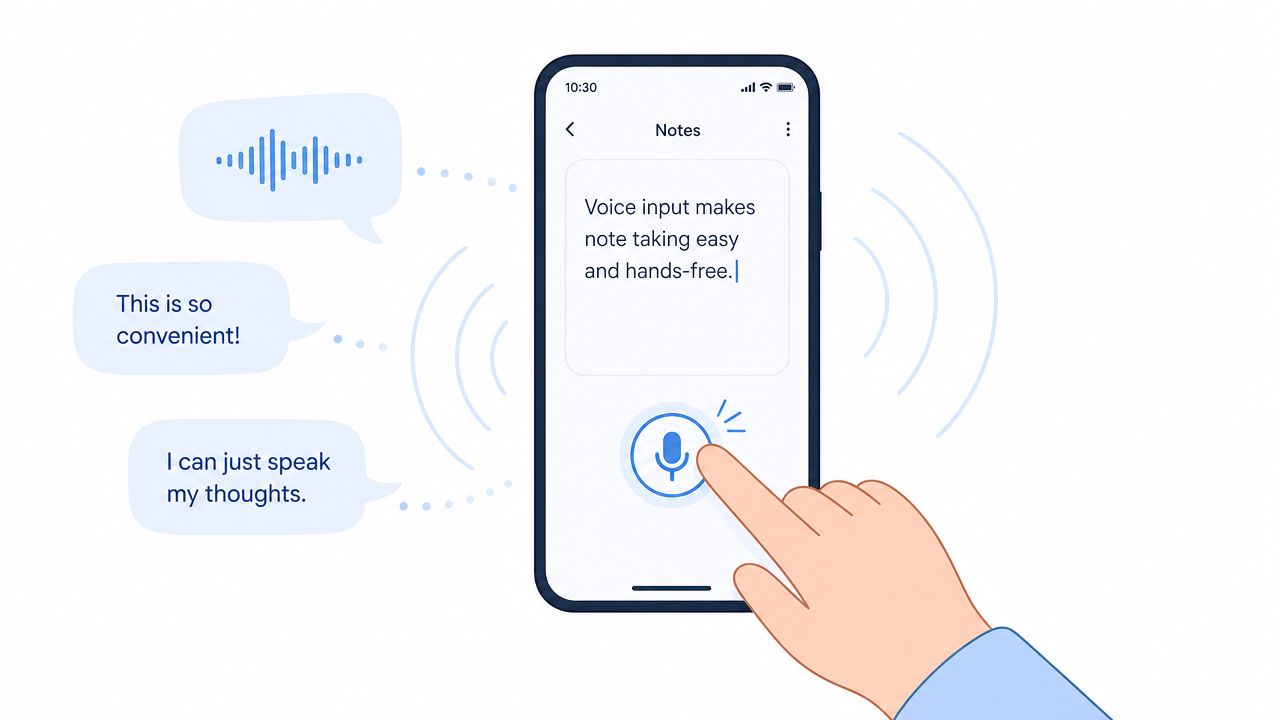
Windows, macOS, iPhone, iPad, and Android all include built-in dictation. That makes your first test easy. Open a notes app, click into a blank field, activate the microphone, and say a simple sentence.
If you use a Mac, Apple's built-in option is enough for a first trial. For a practical walkthrough with screenshots and setup notes, the RewriteBar guide to Mac dictation is a useful starting point.
A built-in tool is ideal for answering one question: do you like speaking your first draft more than typing it?
Your first five-minute setup
Beginners usually get better results when they change three things before they worry about software quality:
- Use a decent microphone: Even a basic headset mic can sound cleaner than a laptop mic across a room.
- Reduce room noise: Fans, keyboard clatter, and speaker audio make recognition harder.
- Sit at a normal speaking distance: Don't lean back and mumble the first test.
Try a short sentence first, then a two-sentence paragraph. Include punctuation commands like “comma” and “period” so you can see how the tool handles structure, not just words.
If you want another Mac-specific setup resource, this guide on how to use dictation on a Mac can help you compare the built-in experience with more dedicated options.
Practice with a tiny script
Your first session should be boring on purpose. Use a script like this:
- Email sentence: “Hi Sarah comma I reviewed the draft and I'll send comments this afternoon period”
- Meeting note: “Client asked for a revised timeline period New paragraph We need approval from design before Friday period”
- Idea capture: “Possible article topic colon common dictation mistakes in fast English conversations”
After a couple of quick tests, watch this walkthrough and then repeat the same lines in your own apps.
The goal isn't perfect output. It's learning where the friction appears first. Usually that's punctuation, names, or fast blended speech.
Practical Tips for Mastering Voice-to-Text
You say a quick thought out loud, something like, “I'll send the notes when I get back from lunch,” and the transcript comes out half right. That moment frustrates a lot of beginners. The problem usually is not your voice. It is that spoken English in daily life runs together like cursive handwriting, while dictation tools are trying to separate every word in real time.
That is why “speak clearly” only gets you part of the way. Better results come from learning three small skills together: voice commands, thought grouping, and fast connected speech. Once those click, dictation starts feeling useful for real work like chat replies, rough drafts, and brainstorming, not just slow practice sentences.
Learn the commands that remove friction
Punctuation commands are the keyboard shortcuts of dictation. If you know a few by heart, you stop breaking your flow to fix structure afterward.
| To Get This | Say This |
|---|---|
| . | period |
| , | comma |
| ? | question mark |
| ! | exclamation point |
| : | colon |
| New line | new line |
| New paragraph | new paragraph |
| “ ” | open quote, close quote |
| ( ) | open parenthesis, close parenthesis |
Start small. Get comfortable with period, comma, new line, and new paragraph first. Those four commands do most of the heavy lifting in messages, notes, and first drafts.
Then add one more habit. Speak in thought-sized chunks.
A good chunk is usually one sentence or one complete idea. That gives the software cleaner boundaries, and it gives you a beat to decide what comes next. If you try to dictate an entire paragraph in one breath, accuracy often drops because the rhythm gets muddy.
How to handle connected speech
Natural English is full of shortcuts. Words blend. Small grammar words get reduced. Endings disappear. “I'm going to send it when I get back” may sound closer to “I'm gonna send it when I get back,” and a tool has to sort that out instantly.
This matters even more if you want to dictate the way people speak in chat, meetings, and idea sessions. Many guides teach slow, careful dictation like you are reading from a script. That is a decent starting point, but real productivity gains come when you can speak at a natural pace and still get clean text.
Use these adjustments:
- Keep your normal speed, but stress the meaning words. Nouns, verbs, names, and dates carry the sentence.
- Give important terms a little space. A tiny pause around a client name or product term can prevent expensive mistakes.
- Finish your word endings. Words like “asked,” “sent,” and “worked” often lose their last sound when rushed.
- Repeat only the broken sentence. Fix the small section that failed instead of restarting the whole paragraph.
Here is a quick test that teaches this fast. Dictate one sentence exactly as you would say it in a real Slack message or brainstorm. Then say the same sentence again with slightly clearer word boundaries. Compare the errors. You will usually find that the misses happen on little words, endings, and blended phrases, not on the main idea.
That pattern is normal. A short lesson on connected speech and unstressed words shows why weak sounds create trouble even for advanced learners and strong speech tools.
One training method works well because it matches real work. Pair short speaking drills with extra listening. This guide to English dictation exercises and listening balance recommends combining focused dictation practice with longer listening time. For a busy professional, that can mean five minutes of voice practice before work and passive listening during a walk, commute, or cleanup block.
Build a routine that fits work
Practice sticks when it attaches to tasks you already do. Treat dictation like a shortcut built into your day, not a separate study session.
A simple routine looks like this:
- Morning: Dictate a short email or status update before touching the keyboard.
- After a meeting: Speak a rough summary while the details are fresh.
- During idea work: Capture fast, messy thoughts by voice first, then edit them later.
- End of day: Add one name, acronym, or repeated work term to your custom dictionary if your tool supports it.
That third step matters more than many beginners expect. Brainstorming speech is fast, unfinished, and full of connected phrases. Practicing only with slow, polished sentences can leave you unprepared for the way you talk when ideas are moving quickly.
If you work with sensitive material, choose tools with care too. It helps to understand the tradeoffs in cloud vs local speech recognition before you build dictation into daily work. Some teams also prefer secure offline voice input for notes, client details, or internal planning.
Custom vocabulary also pays off over time. General English may transcribe well, but company names, product terms, and technical jargon often need a little training. As noted earlier, accuracy is usually highest in clean conditions and drops once specialized language enters the mix.
That is a normal progression. First you get cleaner everyday sentences. Then you teach the system how you talk at work.
Advanced Workflows and Privacy Considerations
Once basic dictation feels comfortable, you can use it for more than simple transcription. It becomes a way to move through the whole writing cycle with less friction.
Use dictation across the whole writing cycle
A strong workflow often starts messy:
- Brainstorm by voice: Speak ideas without editing.
- Draft by voice: Turn the best ideas into rough paragraphs.
- Edit by keyboard: Tighten wording, check facts, fix structure.
- Refine with prompts or tools: Rework sections, summarize text, or reshape tone.
This is especially useful for knowledge workers who switch constantly between chat, documents, tickets, and internal notes. Speaking gets the raw material down quickly. Editing still matters, but it happens after the ideas are captured.
One practical upgrade is to create separate voice habits for separate tasks. Use shorter phrases for chat replies. Use fuller sentences for reports. Use looser spoken notes for brainstorming. That keeps you from expecting one dictation style to fit every app.
Know where your voice data goes
Privacy is the part many beginners skip until they need it. But if you're dictating client information, internal plans, medical details, or anything sensitive, you should know whether your speech is processed in the cloud or on your device.
Cloud-based recognition can be convenient and powerful. On-device options can offer more control because audio doesn't need to leave your machine in the same way. If privacy is a high priority, this guide to secure offline voice input gives a useful overview of why local processing matters.
It also helps to understand the broader tradeoff between convenience and control. This explanation of cloud vs local speech recognition is worth reading if you handle sensitive content and want to choose your setup more deliberately.
Private dictation isn't only a technical preference. It changes what kinds of work you feel safe doing by voice.
The mature way to use dictation in English is simple: match the tool to the task. Use fast voice capture when speed matters. Use local processing when privacy matters. Use editing after dictation when precision matters most.
If you want a tool built for that kind of workflow, Voice Control Pro is worth trying. It lets you dictate naturally across apps, insert clean text where your cursor is, and work faster without constantly switching windows.