
You open Gmail to clear a few replies before your next meeting. Twenty minutes later, you're still typing the second message, fixing wording as you go, and postponing the longer email because it needs too much keyboard time. That's the moment you might find yourself looking for dictation for Gmail.
The problem isn't getting words onto the screen. It's getting from a spoken idea to a send-ready email without creating a cleanup job that eats the time you hoped to save. Free dictation can help. Built-in tools can be enough for short replies. Mobile dictation can be excellent when you use it the right way. But the method matters, because some options save keystrokes while adding editing friction, and others speed up the full workflow.
Table of Contents
- Why You Should Stop Typing and Start Dictating Emails
- Using Built-in Dictation on Your Desktop
- Windows voice typing in Gmail
- Apple Dictation in Gmail
- Where built-in tools help and where they slow you down
- Dictating Gmail on the Go with Your Phone
- How to dictate in the Gmail app
- What improves mobile accuracy
- When mobile dictation is the wrong tool
- Comparing Your Gmail Dictation Options
- Gmail Dictation Methods Compared
- What the table means in practice
- Upgrade Your Workflow with Voice Control Pro
- What changes when dictation becomes cursor-first
- Why workflow quality matters more than raw transcription
- Privacy Best Practices and Frequently Asked Questions
- Privacy rules that matter before you dictate email
- Accuracy checklist for better dictated emails
- Frequently asked questions
Why You Should Stop Typing and Start Dictating Emails
Most email work isn't hard because the writing is complex. It's hard because the volume is relentless. You're answering clients, following up after meetings, clarifying decisions, and sending internal updates. Typing every one of those messages is slow, and the slowdown compounds across the day.
Dictation changes that math. Research cited by UseVoicy's email productivity analysis says users can speak at roughly 150 words per minute compared with an average typing speed of about 40 words per minute. The same source says a 2021 study estimated that voice dictation tools reduced time spent drafting routine text by approximately 60 to 75% once users became proficient, which works out to a roughly three- to four-fold acceleration.
That gap is why dictation for Gmail isn't just an accessibility feature anymore. It's a practical input method for anyone who sends a lot of email.
Practical rule: Use dictation for first drafts and routine replies. Use the keyboard for final edits, names, links, and anything that must be exact.
The biggest shift is mental, not technical. Speaking keeps momentum. You can explain a delay, summarize a decision, or send a thoughtful follow-up in one pass instead of typing, deleting, and retyping every sentence. For people who think faster than they type, that matters.
Still, speed alone doesn't solve the whole problem. Raw transcription can produce awkward punctuation, uneven tone, and cleanup work that cancels part of the gain. Good dictation for Gmail isn't just about talking into a microphone. It's about choosing a method that gives you usable text with the least editing afterward.
Using Built-in Dictation on Your Desktop
The easiest place to start is the software already on your computer. For many people, desktop dictation is one shortcut away from working inside Gmail.
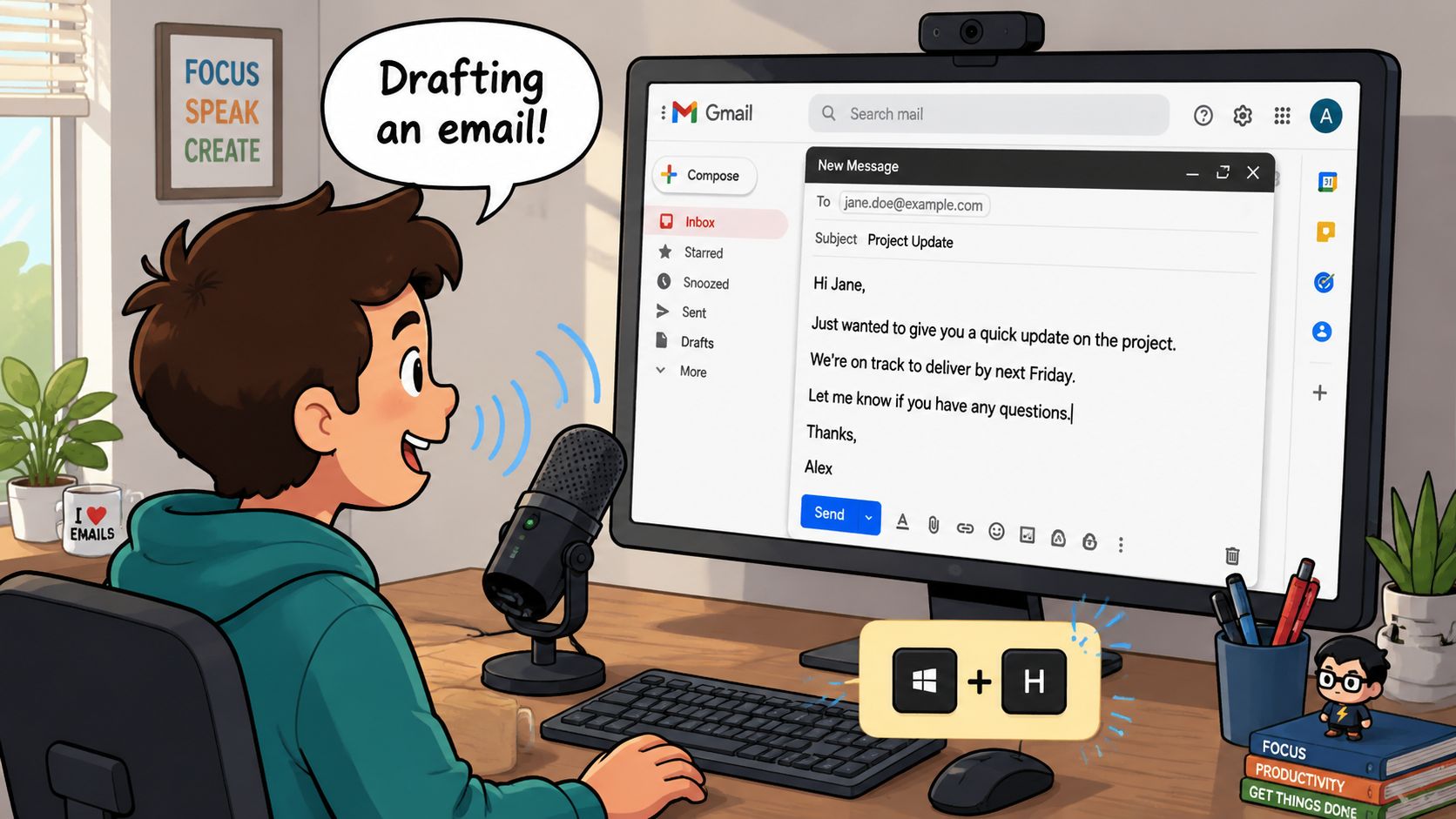
Built-in speech input is common now. According to VoiceDash's overview of Gmail voice-to-text, native dictation on Windows and macOS reached broad availability by 2023, with over 85% of Windows 10/11 users and more than 70% of macOS-equipped devices having speech-to-text enabled by default or easily accessible through settings.
Windows voice typing in Gmail
On Windows, open Gmail in your browser, click into a compose window, and press Win + H. That opens the voice typing panel. Once the mic is active, speak naturally and watch the text appear directly in the email body.
A simple desktop routine works well:
- Open the message first so the cursor is exactly where you want text inserted.
- Speak in sentence-sized chunks instead of one long monologue.
- Pause between thoughts so the system has clean breaks to work with.
- Review names and numbers manually before sending.
Windows dictation is fast to launch and good enough for short replies, scheduling emails, and internal messages. Its weakness is that it can feel like raw input rather than polished writing. You often still need to fix line breaks, tone, and occasional recognition mistakes.
Apple Dictation in Gmail
On a Mac, enable Dictation in system settings if it isn't already active, then click into Gmail and start dictating with your configured shortcut. Apple's built-in approach works well for people who live in the browser and want a no-install option.
It's especially useful when you're replying to email while switching between tabs, notes, and calendars. You don't need a Gmail-specific feature. You just need the cursor in the compose box.
Later in the workflow, a quick visual guide can help if you want to see the browser-based approach in action:
Where built-in tools help and where they slow you down
Free desktop dictation is best when convenience matters more than refinement. It's built in, fast to start, and available in the apps you already use. That's a real advantage.
What usually doesn't work well:
- Long dense emails: The longer you dictate, the more cleanup tends to accumulate.
- Brand-sensitive writing: Built-in tools transcribe words. They don't enforce your preferred style.
- Shared team language: Product names, internal shorthand, and unusual proper nouns often need correction.
- Privacy-sensitive workflows: Your operating system settings may be fine for general use, but you still need to check how processing happens and what data leaves the device.
Built-in dictation is a great starting point. It's rarely the cleanest finish.
If you send a few emails a day, the built-in route may be enough. If Gmail is part of your job, you'll probably want something that reduces editing instead of merely replacing typing.
Dictating Gmail on the Go with Your Phone
Mobile dictation is the fastest way to reply when you're away from your desk, but it only feels efficient when you stop treating it like desktop dictation on a smaller screen. Phone keyboards reward a different style.
How to dictate in the Gmail app
On iPhone, enable Dictation in keyboard settings, open the Gmail app, start a new message or reply, tap into the body, and hit the microphone on the keyboard. On Android, check your language and voice input settings, then do the same in Gmail with Gboard or your active keyboard.
The basic process is simple:
- Tap compose or reply
- Place the cursor exactly where you want text
- Tap the keyboard mic
- Speak the full message
- Stop dictation and edit before sending
If you use Android often, this guide to voice to text on Android phones is useful for the keyboard-side setup details.
What improves mobile accuracy
Mobile email dictation gets much better when you talk like you're sending a voice note to a smart assistant, not when you narrate punctuation like a court reporter. According to SysTools Group's guide to dictation for Gmail, using full sentences with natural pauses lets the keyboard infer punctuation from prosody, which can reduce editing time by roughly 20 to 25% compared with explicitly saying “comma” or “period.” The same source notes that accuracy drops by 10 to 20% in noisy environments.
That lines up with real use. On a quiet walk or in a parked car, mobile dictation can produce clean drafts. In a cafe, train station, or open office hallway, correction work rises quickly.
A few habits make a big difference:
- Keep sentences short: One thought per sentence is easier for the system to parse.
- Pause naturally: Let the keyboard infer punctuation instead of forcing commands.
- Hold the phone or headset mic consistently: Distance changes can hurt recognition.
- Do a fast skim before sending: Mobile errors often hide in names, dates, and homophones.
Speak the email the way you want it read. Pace and phrasing do part of the punctuation work for you.
When mobile dictation is the wrong tool
Phones are excellent for fast replies, confirmations, simple follow-ups, and “sending this now before I forget” emails. They're weaker for delicate negotiation, long explanations, or anything that needs careful structure.
If the message requires several paragraphs, nuanced tone, or exact terminology, dictating on mobile can become a false economy. You save typing, then spend the time fixing formatting and wording with your thumbs. In those cases, it's better to capture the rough draft by voice and finish later on desktop.
Comparing Your Gmail Dictation Options
Most guides lump all voice tools together. That's where bad decisions start. The best method depends less on whether text appears on screen and more on how much cleanup, app switching, and privacy risk comes with it.
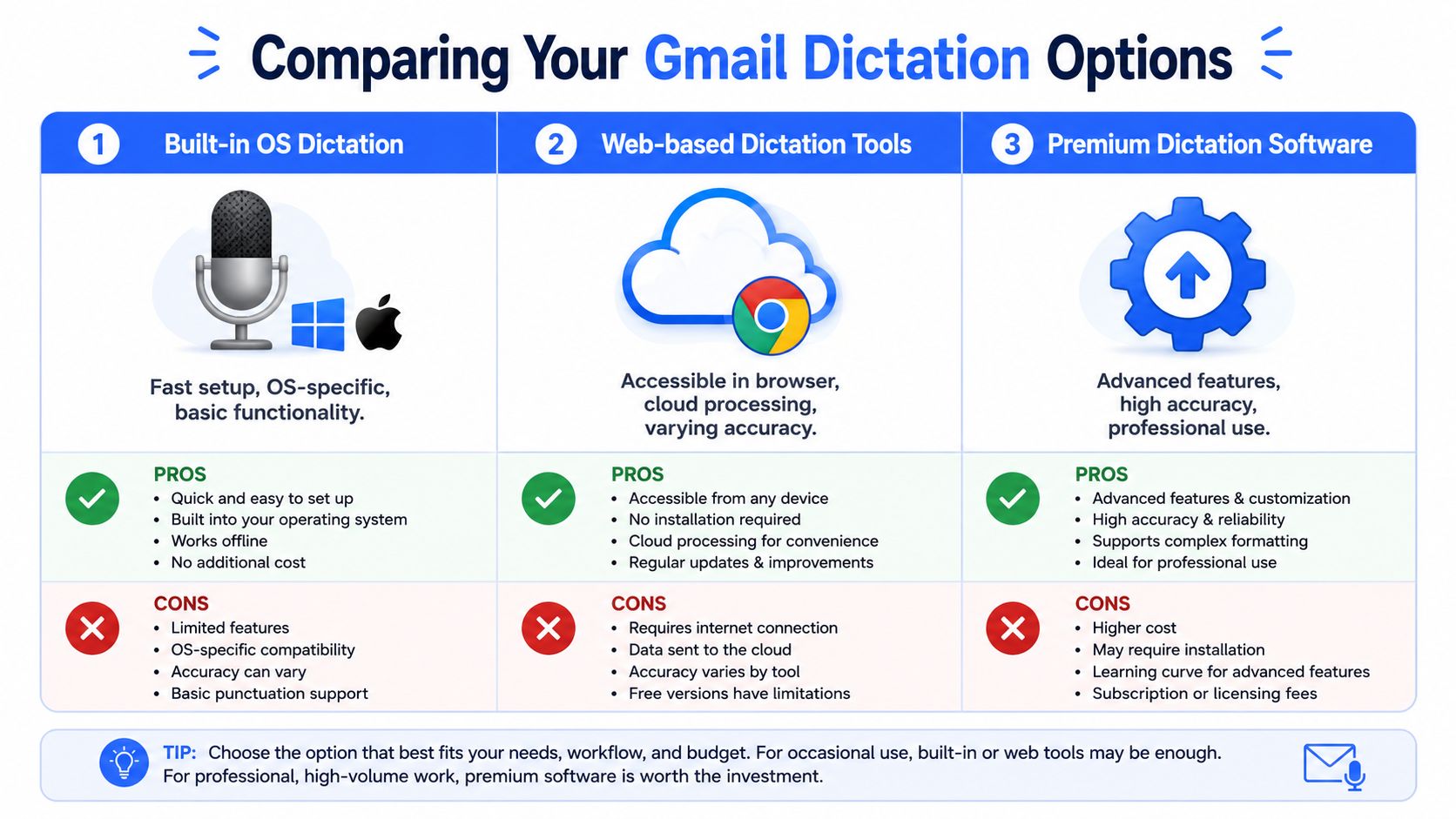
Gmail Dictation Methods Compared
| Method | Setup | Accuracy | Formatting/Cleanup | Privacy | Best For |
|---|---|---|---|---|---|
| Built-in OS dictation | Fast. Usually available by default or in system settings | Good for everyday language | Basic. Often needs manual cleanup | Depends on system settings and processing mode | Individuals sending routine replies |
| Google Docs Voice Typing workaround | Moderate. Dictate in Docs, then paste into Gmail | Often usable for longer drafts | Better for drafting than direct email insertion, but copy-paste adds friction | Depends on Google ecosystem settings and comfort level | Longer first drafts |
| Browser extensions | Varies widely by extension | Varies widely by extension | Some offer extras, some feel raw | Needs close review because extension permissions and retention policies differ | Browser-heavy users testing options |
| Dedicated dictation tools | Usually a one-time setup plus shortcut learning | Typically more workflow-friendly for regular use | Strongest option when cleanup tools, style control, and direct insertion are included | Best when local processing or transparent controls are available | Heavy email users, teams, and professionals |
For a broader software sphere, this roundup of speech-to-text software options is a good starting point.
What the table means in practice
Built-in dictation wins on speed of setup. You can try it today, free, with no procurement and almost no learning curve. That's why it represents an ideal entry point for many users.
Google Docs Voice Typing works better than many people expect for long-form drafting. The downside is workflow interruption. You dictate in one place, clean up in another, then paste into Gmail. For occasional long emails, that's tolerable. For daily use, the copy-paste loop gets old.
Browser extensions are the most uneven category. Some feel helpful at first because they promise direct Gmail support, but quality and transparency differ a lot. An extension can save time, or it can add another layer of permissions, lag, and uncertainty.
Dedicated tools are where dictation stops being a novelty and starts feeling operational. The key difference isn't that they convert speech to text. Plenty of products do that. The difference is whether they produce text that's already shaped for the way professionals write email: cleaner punctuation, fewer filler artifacts, better insertion behavior, and more control over privacy and style.
Upgrade Your Workflow with Voice Control Pro
When people say they want better dictation for Gmail, they usually mean they want less friction. They don't want to type the draft, but they also don't want to spend the saved time repairing the transcript.
That's where a dedicated tool changes the experience.
What changes when dictation becomes cursor-first
A purpose-built tool works where your cursor already is. In Gmail, that means you click into the compose window, use the shortcut, speak, and get text inserted directly into the message. No switching to a separate draft pad. No dictating into one app and pasting into another. No breaking concentration to manage the tool.
That sounds like a small difference until you use it for an hour of real email work. Workflow quality comes from removing micro-delays:
- No app hopping: You stay in Gmail.
- No manual transfer: Text lands where you're writing.
- No “raw transcript” feel: Cleanup can happen as part of the process.
- No one-size-fits-all output: Better tools let you shape how polished the inserted text should be.
Why workflow quality matters more than raw transcription
Teams often discover the next problem after they adopt dictation: the email sounds inconsistent. One person dictates in a casual style. Another speaks in fragments. A third gets punctuation right but not tone. According to a 2024 Slack State of Work report, 65% of knowledge workers say inconsistent tone and style in team communications reduce clarity. That matters in support, sales, and any role where email quality affects trust.
The best dictation system doesn't just hear your words. It helps produce the version you'd actually send.
That's why features like cleanup levels, custom dictionaries, and rewrite assistance matter more than a bare microphone button. They reduce the gap between spoken draft and finished email. A personal dictionary helps with product names, customer names, and recurring jargon. Cleanup controls let users decide whether they want light transcription or something closer to polished prose. An assistant layer can help reword a message without forcing a context switch.
Privacy is another reason dedicated tools stand apart. Some professionals need local processing options, clear control over what's stored, and the ability to pause cloud features when email content is sensitive. A tool built for daily work tends to expose those decisions more clearly than a generic browser add-on.
If you want to see what that looks like in practice, Voice Control Pro is a good example of the category. The appeal isn't just faster input. It's tighter insertion, stronger cleanup, better style control, and privacy modes that fit real work.
Privacy Best Practices and Frequently Asked Questions
Dictation tools are often evaluated by one question: “How accurate is it?” That matters, but email often contains client details, internal plans, personal information, or regulated content. Privacy belongs near the top of the checklist.
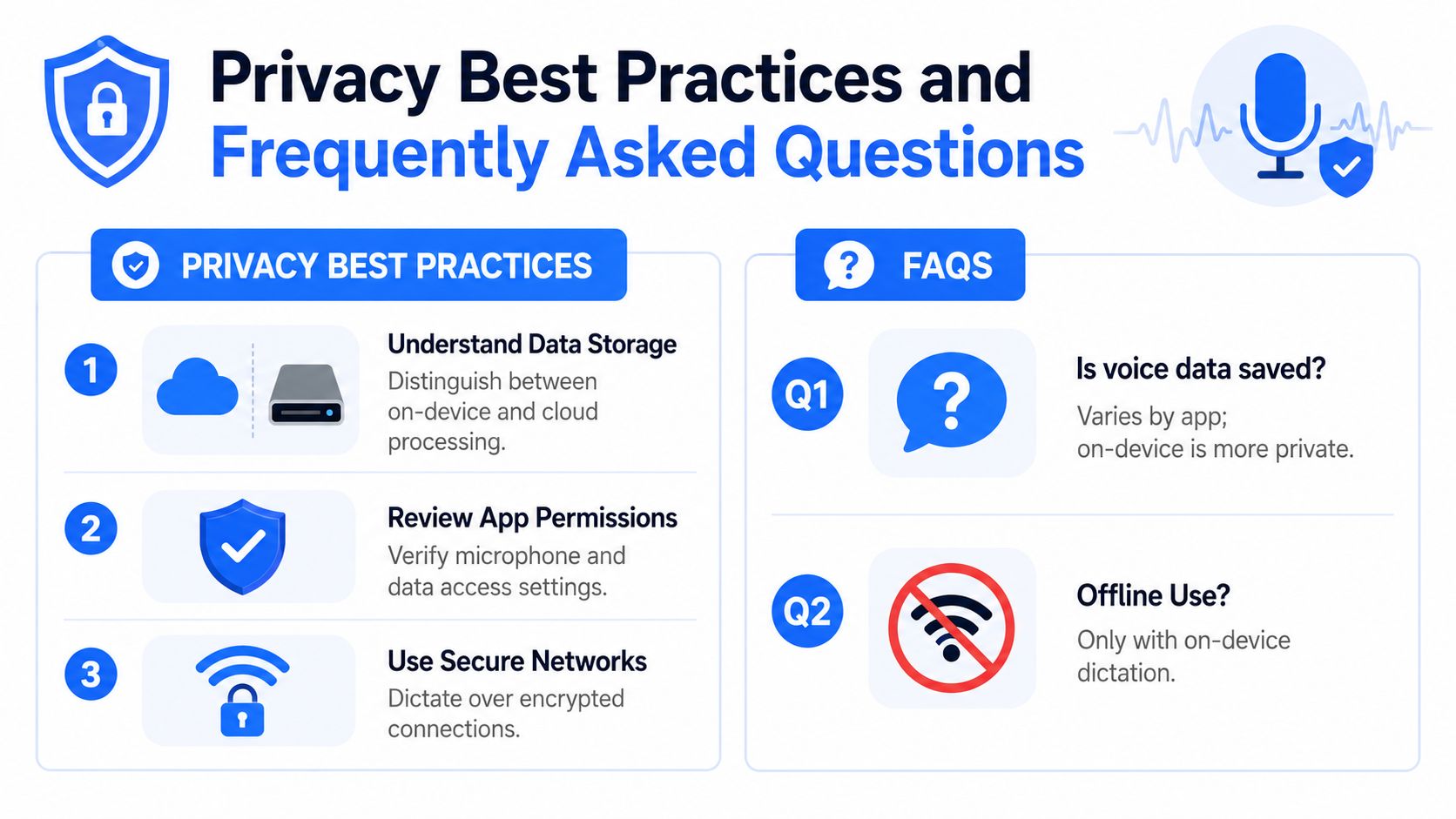
Privacy rules that matter before you dictate email
A 2025 Electronic Frontier Foundation report noted that only a minority of speech-to-text browser extensions provide transparent data-retention policies or local-only processing options. That's a warning sign for anyone using browser-based dictation around sensitive material.
Start with a few checks:
- Read retention language carefully: If the tool isn't clear about whether audio is stored, assume you need more information.
- Prefer local processing when needed: If you handle confidential email, choose tools that support on-device modes.
- Review permissions: Browser extensions can ask for broad access. Make sure the level of access matches the job.
- Use trusted services for adjacent workflows: If your team also sends campaigns or bulk messages, reviewing a provider's data handling page, such as Mail Merge for Gmail privacy, helps set a better standard for what transparency should look like.
Sensitive email content changes the tool you should choose, not just the settings you should toggle.
Accuracy checklist for better dictated emails
Privacy and accuracy aren't separate problems. The cleaner your dictation process is, the less rework you do, and the less likely you are to move content across too many tools.
Use this checklist before hitting send:
- Choose the right environment
Quiet rooms beat coffee shops. Headsets usually beat laptop mics.
- Dictate in complete thoughts
Fragmented speech creates fragmented email.
- Check proper nouns manually
Customer names, companies, addresses, and product terms deserve a final glance.
- Keep a repeatable style
Open the same way. Close the same way. Reuse phrases you know work.
- Match the tool to the email
Quick mobile reply for speed. Desktop or dedicated workflow for longer messages.
Frequently asked questions
Can I use dictation for Gmail without installing extra software? Yes. Built-in tools on Windows and macOS can work directly inside a Gmail compose window.
Is mobile dictation good enough for professional email? Yes, for many short and medium replies. It's less reliable when the environment is noisy or the email needs careful structure.
Do I need to say punctuation out loud? Usually not on mobile if your keyboard handles natural pauses well. On desktop, results vary by tool and speaking style.
Can dictation help with typing fatigue? Yes. Many users adopt it because speaking reduces keyboard load during high-volume email work.
What should I do if dictated emails sound unlike me? Use shorter spoken phrases, standardize your email structure, and choose a tool that supports style control or cleanup options.
If email is one of your main work surfaces, a dedicated tool is worth testing. Voice Control Pro gives you cursor-level dictation across apps, local-first privacy options, cleanup controls, and rewrite help, so your Gmail workflow feels faster without turning every message into an editing project.