
A custom dictionary app is a personal or team vocabulary that helps writing and speech tools spell names, product terms, acronyms, and specialized language correctly. You dictate an email to a client named Maren, but the text says “marine,” and you're back at the keyboard fixing the word you most needed it to get right.
The useful question isn't just whether you can add Maren to a list. It's whether the tool will recognize the name while you speak, repair a predictable mistake afterward, or stop flagging the spelling.
Table of Contents
- What a Custom Dictionary App Actually Does
- A lookup tool versus an active writing aid
- Judge the behavior, not the label
- From Printed Word Lists to Personal Vocabularies
- The shift toward observed language
- From access to adaptation
- How a Custom Dictionary Changes Recognition
- Give the recognizer useful evidence
- Boost terms only when they fit
- Where a Custom Dictionary App Pays Off
- Different jobs, the same correction test
- Portability explains the expectation
- Choosing Personal Shared or Local Lists
- Which Custom Dictionary Scope Fits the Terms
- Share deliberately, not automatically
- Using Voice Control Pro with Your Terms
- Separate what you specify from what the tool learns
- Apply that approach during everyday dictation
- Build a Small List and Test One Sentence
- Test at the cursor
What a Custom Dictionary App Actually Does
Suppose you dictate this sentence: “Send Maren the AsterCloud migration notes.” The result is “Send marine the aster cloud migration notes.”
These are illustrative errors, not results from a product test. They show a familiar problem: a sentence can look grammatically reasonable while getting its most important details wrong.
A custom dictionary app gives a language tool vocabulary that a general resource can't reliably anticipate. That might include your colleague's surname, a product's capitalization, a project abbreviation, or a technical term you use throughout the day.
Personalization extends a general language resource. It doesn't replace the language knowledge already there.
A lookup tool versus an active writing aid
A conventional dictionary waits for you to search for a word. An active custom dictionary can participate while you create text, although its role depends on the application.
A spelling checker might accept a stored surname without underlining it. A dictation tool might use the same surname to guide recognition. Another application might only correct a particular misspelling after text appears.
Those behaviors aren't interchangeable. If the tool merely accepts “Maren” as valid written text, that doesn't necessarily mean it can distinguish the spoken name from “marine.”
- Personal names: Store the spelling you need, including capitalization.
- Organization language: Include recurring project labels and product terminology.
- Specialized vocabulary: Focus on acronyms and technical words that repeatedly cause trouble.
Judge the behavior, not the label
Before choosing an app, ask what “custom dictionary” means inside it. Does an entry influence recognition, affect spelling checks, or trigger a replacement?
Then ask where that entry applies. A name used in your correspondence may belong in your personal vocabulary, while an approved product spelling may need broader use.
The aim isn't to collect every unusual word you know. It's to remove predictable interruptions without introducing new mistakes. You should be able to identify the words worth storing, understand how the tool uses them, and decide who should have access to them.
From Printed Word Lists to Personal Vocabularies
A printed dictionary can describe a language carefully, but it can't change when your employer launches a product or a new colleague joins your team. Its vocabulary is fixed at publication.
Electronic dictionaries developed alongside a deeper change in dictionary making. Lexicographers moved from manually collected citations toward corpus-based workflows, using searchable collections of real text to examine how people wrote.
The shift toward observed language
The COBUILD project was a landmark in the 1980s: its electronic corpus contained 7.3 million words during compilation and expanded to 18 million words during final editing, helping lexicographers ground definitions and usage information in observed language, as described in this history of electronic lexicography.
The significance wasn't that a computer could hold more text. Lexicographers could search examples, compare usage, and revise entries within a digital workflow.
That history helps explain the progression shown below.
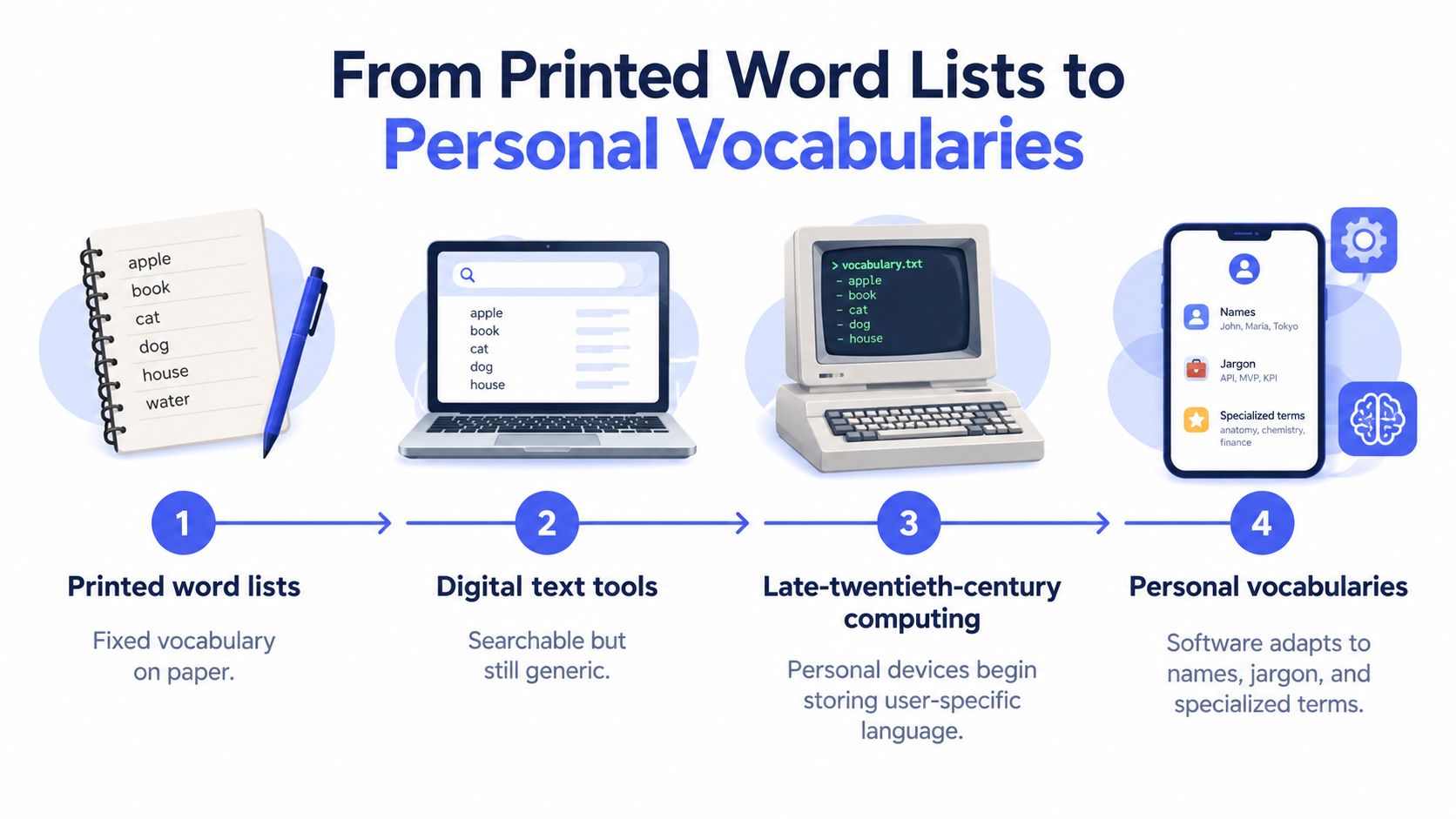
- Printed word lists: Readers consult a fixed vocabulary on paper.
- Searchable digital resources: Users retrieve entries without scanning printed pages.
- Personal computing: Software makes stored vocabulary easier to maintain and update.
- Personal vocabularies: People add language specific to their work and relationships.
From access to adaptation
Electronic dictionaries subsequently appeared as PC applications, handheld devices, online services, and mobile-phone applications. Across those formats, software made lexical information easier to store, search, and update.
Personalization adds a different capability. Instead of asking only what a word means, you can tell a tool which word belongs in your work.
That distinction matters in professional writing. A standardized dictionary can't anticipate every internal label or preferred spelling, and it shouldn't have to. A user-maintained layer can supply that context without changing the shared resource underneath.
The useful historical lesson is therefore about control, not nostalgia. Digital access lets you retrieve vocabulary; a custom dictionary lets you maintain vocabulary that general reference works can't fully cover.
How a Custom Dictionary Changes Recognition
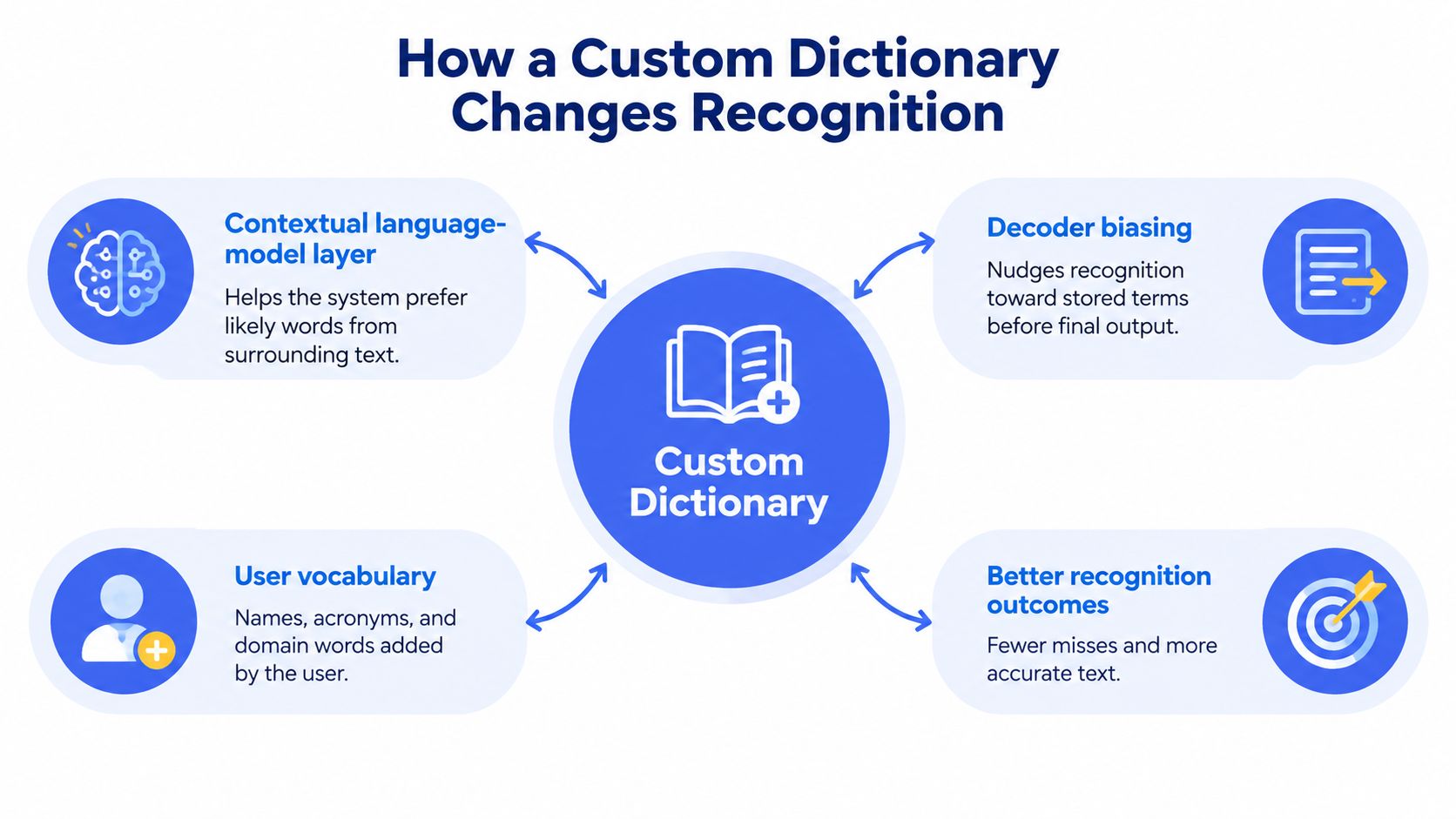
A microphone hears “Kuber net ease” while you mean Kubernetes. A recognition hint can help select the intended term before the transcript is written. A replacement rule works later, changing a specific mistaken result after transcription.
Recognition hints shape what the system hears. Replacements edit what it has already produced.
Give the recognizer useful evidence
Rare names, acronyms, and technical terms may be out of vocabulary. That means the system's working vocabulary does not represent them well enough. A useful recognition entry can give the system several clues:
- Canonical spelling: The exact form to write.
- Pronunciation information: A sounds-like clue or representation of how the term is spoken.
- Aliases: Approved alternatives, when relevant.
- Context: The language, project, or subject area where the term belongs.
Adding Kubernetes as a recognition hint may help the system choose that word from the audio. A replacement from “kuber net ease” to “Kubernetes” only acts if that particular mistake appears in the output. CaptionHub's custom-dictionary guidance describes sounds-like fields for words whose spelling does not make their pronunciation clear.
The vocabulary layer can guide recognition before text exists:
Boost terms only when they fit
In research on contextual adapters and on-the-fly boosting, recognition of selected out-of-vocabulary words improved by 60% in F1 score on English VoxPopuli, with minimal change to overall word-error rate. This result applies to selected words under experimental conditions. It does not promise the same improvement in an app.
The practical principle is to favor a stored term when both the audio and context support it. Raise its likelihood everywhere, and ordinary speech may turn into unwanted jargon. Project-scoped or language-specific lists can help keep hints relevant. Look for deduplication, import and export, and a fallback to the general model. For mixed-language work, this guide to multilingual speech recognition on desktop explains why language context matters.
Recognition accuracy and writing style are separate jobs. A correctly transcribed word can still be repeated too often. The resource on understanding habitual word overuse addresses that editing problem, while a custom dictionary helps the recognizer choose the intended vocabulary.
Where a Custom Dictionary App Pays Off
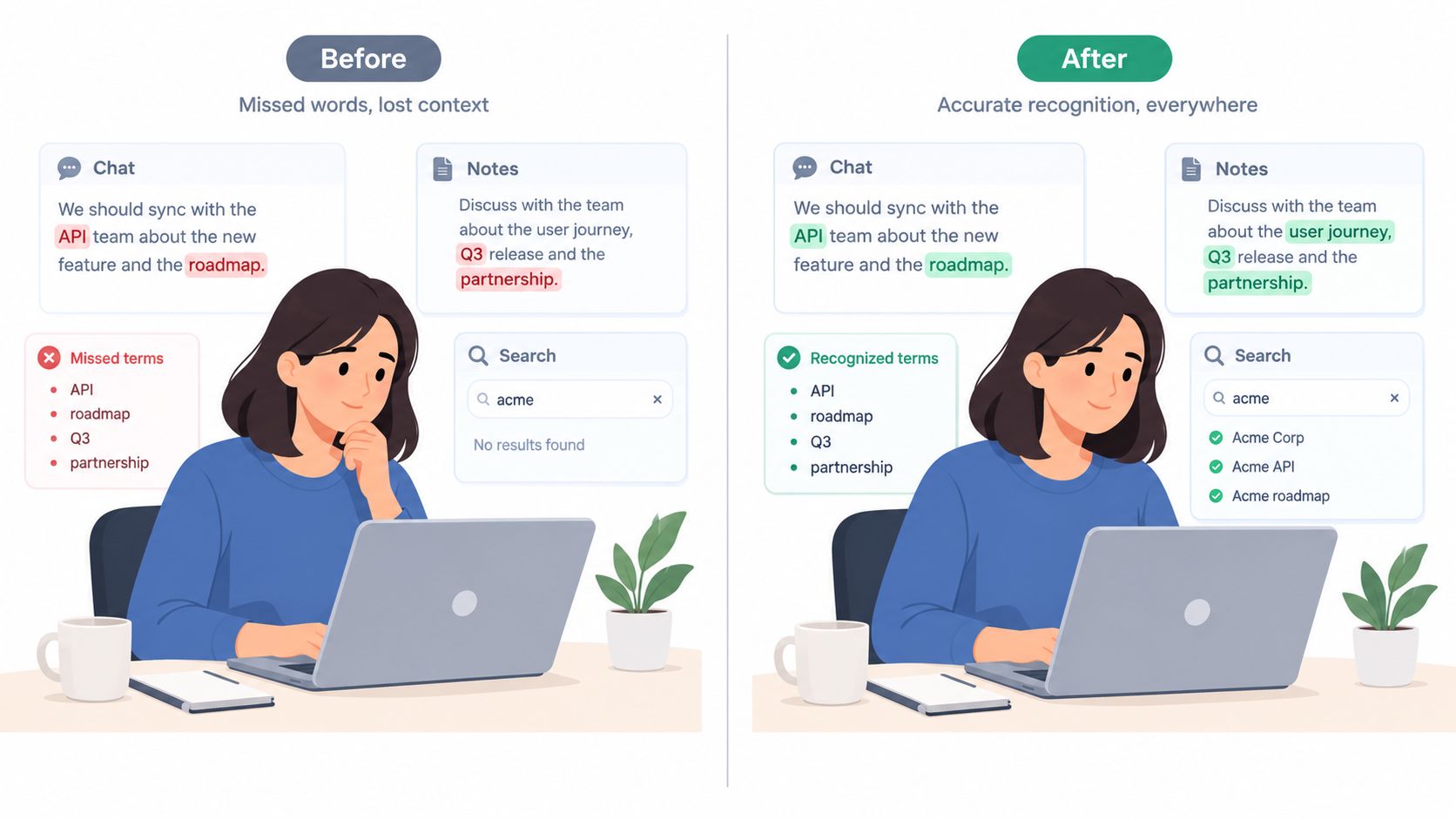
A dictated name can turn a finished sentence into another editing task. Say “Send the report to Maren,” and the app may write “marine.” A custom dictionary works as a recognition layer: it can give the system a useful hint before transcription, while replacements made afterward only repair text that has already been produced. The examples below show when recurring corrections may justify adding a term.
Different jobs, the same correction test
For knowledge workers, a client's name may sound like an ordinary word. If “Maren” keeps becoming “marine” in emails and documents, adding the preferred spelling to a relevant personal list can help the recognition system distinguish the name. A replacement rule can fix the text afterward, but it does not guide recognition before the words appear.
For support and sales, “AsterCloud” may come through as “aster cloud.” A shared list can help when a group repeatedly uses the same approved product name in chat and CRM work. Keep the term scoped to that work, so unrelated dictation is not nudged toward company jargon.
For students and researchers, “heteroskedasticity” is easy to mishear or misspell in lecture notes. Add it to a subject-specific list if it keeps interrupting note-taking. For a term used only once, correcting the transcription may be simpler than maintaining a vocabulary entry.
For developers and prompt engineers, “FastAPI” may appear as “fast API.” A recognition hint can preserve the library's written form when it comes up often. After-the-fact cleanup remains useful for an occasional error, but it cannot prevent the initial mismatch.
Portability explains the expectation
A market estimate for electronic dictionaries valued the sector at approximately USD 8.86 billion in 2025, projected USD 23 billion by 2032 at 14.6% compound annual growth, reported digital preference among more than 62% of users, placed North America at roughly 32% of market share, and attributed nearly 40% of revenue to mobile applications.
Those estimates offer context for portable language tools. They do not show that a particular dictionary will improve dictation. The practical test is smaller: does the term recur, and would a hint before transcription help more than a correction afterward?
For someone using speech to reduce keyboard work, repeated name corrections can erode the benefit. Longer-form authors can also explore voice dictation for writers, keeping terminology recognition separate from drafting and revision.
Choosing Personal Shared or Local Lists
A vocabulary list can reveal sensitive information even when no audio is retained. Client names, legal matters, medical terminology, internal projects, and unreleased products can all disclose context.
The first decision is therefore not how many words you can upload. It's who should control and see them.
Which Custom Dictionary Scope Fits the Terms
| Scope | Who controls it | Best fit | Main risk |
|---|---|---|---|
| Personal | The individual user | Personal contacts, preferred spellings, narrow work vocabulary | Assuming user ownership means private storage |
| Shared | An organization administrator | Approved terminology used across a group | Exposing sensitive terms or applying irrelevant jargon |
| Local-only | The device user, subject to organizational policy | Vocabulary that shouldn't be synchronized | Availability, backup, and recovery need separate planning |
These aren't completely separate categories. Personal versus shared describes ownership; local versus synchronized describes storage. A personal list may still be stored in the cloud.
WProofreader's custom-dictionary documentation distinguishes user-owned personal dictionaries from organization-managed dictionaries, including capacities of roughly 10,000 words for personal use versus approximately 100,000 English words for an organization dictionary. Those are product-specific capacities, not universal limits.
Share deliberately, not automatically
A shared vocabulary can help colleagues use the same approved product spellings. It also needs an owner who can review changes, resolve conflicts, and remove outdated terms.
Department-specific jargon is a different matter. A term that helps an engineering group may be an unwanted recognition candidate in customer correspondence. Synchronizing everything isn't necessarily an improvement.
Scope rule: Share canonical terms that many people must spell consistently. Keep sensitive or narrow vocabulary personal or local.
Before enabling synchronization, check who can view, edit, export, and delete entries. Ask whether changes are auditable, whether languages remain separate, and whether previous versions can be recovered.
Large dictionaries also deserve caution. The transcription guidance cited earlier warns that oversized dictionaries can reduce quality, so bulk importing every available glossary isn't a safe shortcut.
Prefer a curated collection with a clear purpose. If nobody can explain why an entry belongs in a shared list, it probably shouldn't be active for everyone.
Using Voice Control Pro with Your Terms
A dictation system may spell a familiar name correctly in one sentence and miss it in the next. A custom dictionary helps by adding a recognition layer: it can guide transcription before words reach the page, while approved corrections can shape later behavior. Those are separate jobs, and neither means the tool learns from every sentence you type.
Research on personalized language models found that priming can help when little user-specific text is available, while personalized models can make better use of a larger user corpus (research on personalized language models). In practical terms, a deliberate hint can help early; adaptation from an approved history may become useful as that history grows.
Separate what you specify from what the tool learns
Think of a recognition layer like a name badge at a busy reception desk. A specified spelling points the system toward the right term; a correction history offers another kind of signal.
- Explicit entries: Provide canonical spellings for names or jargon you want recognized.
- Approved corrections: Let the tool learn from changes you choose to confirm.
- Model balance: Allow personal signals to work alongside general-language knowledge.
- Privacy controls: Check whether learning is opt-in, where entries are stored, and whether specified and learned terms have separate confidence settings.
On-device vocabulary expansion can help protect privacy, but it does not guarantee that every app keeps its dictionary on your device. Check the specific storage and synchronization settings before adding sensitive terms.
Apply that approach during everyday dictation
Voice Control Pro offers cursor-level dictation on macOS and Windows. Hold a global shortcut, speak, then release to insert text into the active app. The product's local mode supports dictation with an on-device model, while Fly Mode runs processing locally and pauses cloud features. These describe processing options, not a confirmed policy for dictionary storage.
The Max upgrade includes a custom dictionary, style-matched cleanup, transcription history, multilingual support, and Hey Max tools for rewriting, asking on-screen questions, and launching installed apps. Use the dictionary for recurring names and specialist terms, not ordinary words the general language model already handles.
For example, dictate a client update into an email draft and check whether the intended name and project label appear correctly. A sentence can read smoothly while still spelling a name wrong, so inspect the terms themselves.
Hey Max rewriting works after text has been produced. A recognition hint works earlier, guiding how a spoken name may be transcribed. Use rewriting to revise wording, and a dictionary entry to help the system recognize a spelling it might not know.
Build a Small List and Test One Sentence
A recognition dictionary works like a small map for names and jargon. Start with words you have corrected, rather than filling it with terms you may never dictate. In a private note, collect recurring names, a product label, troublesome acronyms, and specialist vocabulary from recent work.
Record each term's preferred spelling and where it should apply. Add a pronunciation clue only if the spoken form is unclear and the tool accepts one. Keep the list tied to observed errors.
| Entry detail | What to record |
|---|---|
| Canonical form | The exact spelling and capitalization you want |
| Spoken clue | A pronunciation reminder when useful |
| Scope | Personal, shared, or local according to sensitivity and relevance |
| Observed error | The actual output you had to correct |
An observed error helps you work out what kind of fix is needed. If the same spoken term repeatedly produces one wrong spelling, a replacement after transcription may help. If the output varies, the recognizer may need a hint before transcription instead. Those mechanisms are different, so check which one your app's dictionary provides.
Try a sentence that sounds like real work: “Send Maren the AsterCloud migration notes after lunch.” It includes familiar words and terms to check, without turning the test into a string of jargon.
Test at the cursor
Place the cursor in a draft, dictate the sentence, then compare the inserted text with what you said. If a term fails, repeat the test under normal working conditions before adding more entries.
- Check the term: Verify its spelling and capitalization.
- Check the mechanism: Find out whether the entry guides recognition or edits text afterward.
- Check the scope: Limit the entry if it changes unrelated dictation.
For recording or dictation problems beyond vocabulary, use these speech-to-text accuracy tips. A missed name is not always a missing dictionary entry.
With the cursor-level tool described earlier, test the press-and-hold workflow in an app you already use. For sensitive material, consider a local mode and check the vocabulary-storage controls separately. A personal list suits terms unique to your work; a shared list can help a team use the same names, while a local list may be safer for sensitive vocabulary.
If you use Max, add recurring canonical terms to its custom dictionary. Then dictate into an actual email, support reply, or note and judge the setup by how much correction remains, not by list size.