
You start a draft at work on a Windows laptop. Later that evening, you open your Mac at home, launch the same app, and the rhythm falls apart. The shortcut keys are different. A feature is missing. Text pastes with odd formatting. The app technically exists on both machines, but it doesn't feel like the same tool.
That's the gap individuals often mean when they complain that software feels clunky across devices. They're not asking for a lecture on frameworks or codebases. They want the simple promise that their tools will behave reliably wherever they happen to be working.
Table of Contents
- What Is Cross Platform Compatibility
- The user version of the definition
- Why Compatibility Is Crucial for Modern Productivity
- Why people expect it now
- The Great Divide macOS vs Windows
- Why the same app feels different
- macOS vs Windows Key Differences for App Compatibility
- Deep Dive into Technical Hurdles
- Apps have to speak two system languages
- Text insertion is where many tools stumble
- How Developers Build and Test for Two Worlds
- One shared core with local adapters
- Testing has to happen in messy real life
- Privacy Performance and On-Device AI
- Privacy choices affect compatibility too
- Why a hybrid approach makes sense
- Your Compatibility Checklist for Any App
What Is Cross Platform Compatibility
Cross platform compatibility means an app works well across different operating systems without making you relearn it each time. In practice, this means the same tool should feel dependable on macOS and Windows, not just launch successfully.
A simple example makes this easier to see. Say you use a note-taking app at the office on Windows. You open the Mac version later and discover the menu layout changed, the keyboard shortcut you rely on no longer works, and one sharing option is tucked into a totally different place. The company may say the app supports both platforms, but your experience says otherwise.
That's why compatibility is really a user promise. It says your files, shortcuts, settings, and habits should travel with you. You shouldn't have to keep a mental checklist that sounds like this: “On Windows I press this. On Mac I click that. In the browser version I lose that feature entirely.”
Cross platform compatibility isn't just about whether software runs. It's about whether you can stay in flow when your device changes.
You already see this expectation in everyday tools. If your calendar looked different on every machine and meetings stopped syncing properly, you'd feel the friction immediately. That's why resources on real-time calendar synchronization are useful even outside the calendar category. They show the broader user expectation: information should stay consistent while you move between systems.
The user version of the definition
Here's the plain-English test:
- Same job gets done: You can complete the task on either platform.
- Core actions stay familiar: Shortcuts, menus, and behavior don't suddenly become alien.
- Your data stays intact: Notes, settings, and history follow you.
- The app respects the device: It still feels natural on that operating system.
That last point matters. A compatible app shouldn't feel like a cardboard cutout copied from one system to another. It should preserve consistency without ignoring local conventions.
For users, that's the whole idea. Your tools should meet you where you work.
Why Compatibility Is Crucial for Modern Productivity
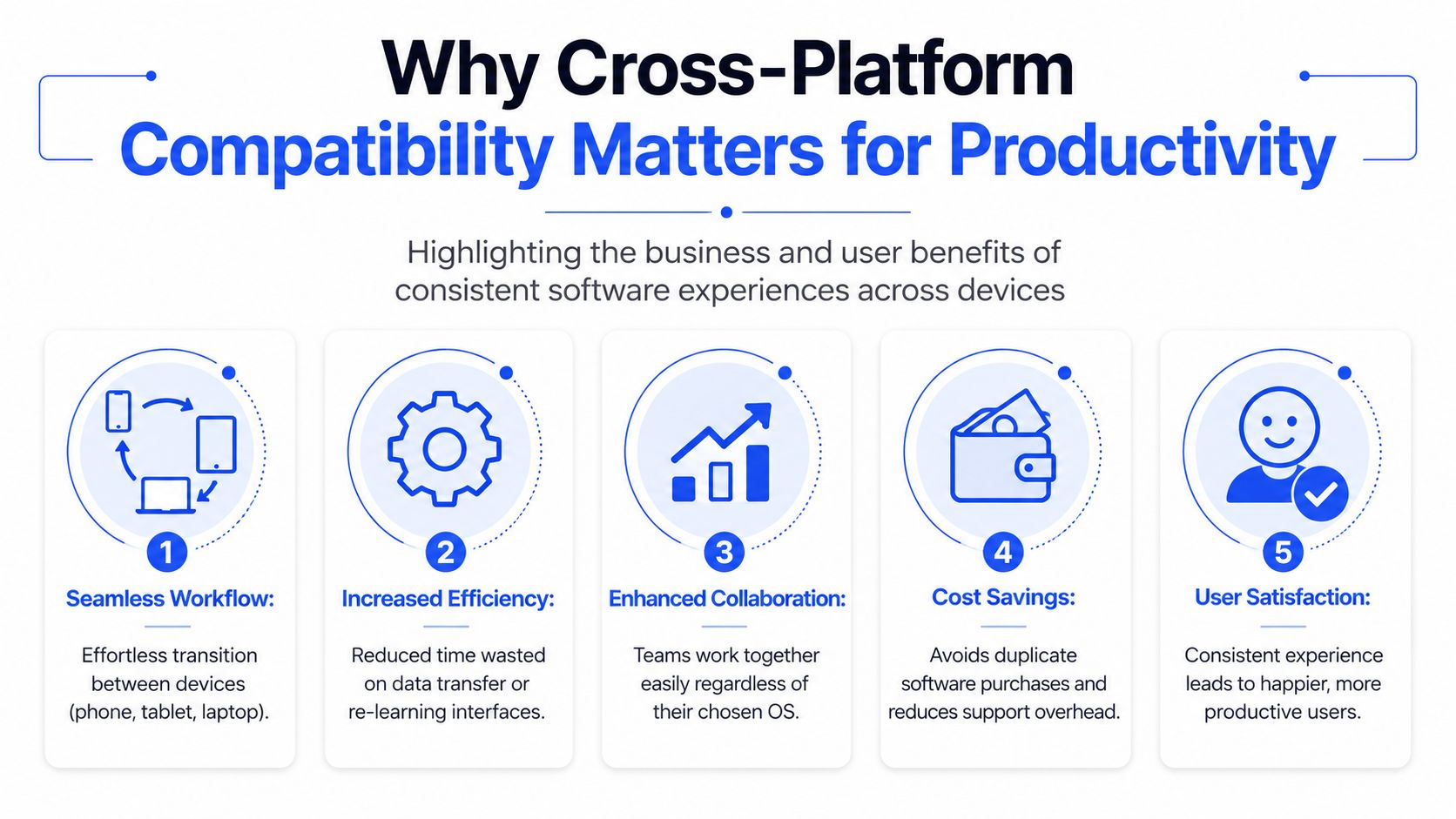
Work no longer happens on one machine in one room. People draft on a desktop, review on a laptop, tweak a message on a phone, then jump into a browser tab during a meeting. When software breaks that handoff, productivity drops for a very human reason: your attention gets redirected from the task to the tool.
Cross platform compatibility reduces that tax. You don't waste energy remembering different commands or checking whether a feature exists on the device in front of you. You just continue.
A broader industry shift supports that expectation. Over 40% of developers now prefer cross-platform frameworks, and the market for these tools is projected to grow at a 17.5% CAGR from 2023 to 2030, according to Meegle's cross-platform app development statistics. Even if you never write software, that trend matters because it reflects demand for tools that work across macOS, Windows, Android, and iOS.
A quick visual helps summarize why this matters in daily work.
Why people expect it now
Think about gaming for a second. Players used to accept being split up by console or device. That expectation changed. A reported 61% of gamers globally adopted crossplay functionality in 2025, according to cross-platform and crossplay statistics from Coop Board Games. Different category, same mindset: users don't want platform walls.
Professionals feel the same thing when they switch between a work PC and a personal Mac. They don't phrase it as “platform convergence.” They say, “Why does this app make me start over every time I switch computers?”
Practical rule: If changing devices changes your workflow, the software isn't as compatible as it looks on the pricing page.
Here's how the friction usually shows up:
- Interrupted focus: You stop writing, replying, or reviewing because you're hunting for a feature.
- Extra cleanup: Formatting breaks, pasted text looks wrong, and you spend time fixing output.
- Uneven team experience: One colleague can do something on Windows that another can't do on macOS.
- Support overhead: Someone has to explain why “the same app” behaves differently in different places.
Later, when you compare systems side by side, the reasons become clearer.
For a short overview of the compatibility problem in action, this video gives useful context.
The Great Divide macOS vs Windows
MacOS and Windows aren't two skins on the same machine. They have different conventions, different security models, and different ideas about how apps should behave. That's why a tool can feel polished on one platform and awkward on the other.
Why the same app feels different
Start with shortcuts. Mac users expect Command-based keyboard behavior. Windows users expect Control-based behavior. That sounds minor until your hands have built years of muscle memory. Every mismatch forces a tiny pause, and enough tiny pauses make software feel exhausting.
Permissions are another common source of confusion. On macOS, apps often ask for specific access to the microphone, accessibility controls, screen recording, or automation. On Windows, similar abilities are presented through different prompts and system settings. To a user, this can feel like one version is “easier” when the actual difference is that each operating system asks for trust in its own way.
File handling also changes the experience. The place where downloads live, how apps open files, and what happens when you drag content between windows can vary more than people expect. None of this is dramatic in isolation. Together, it changes whether an app feels native or awkward.
If you've compared dedicated dictation tools with built-in system options, the contrast becomes easier to notice. A practical example appears in this look at Voice Control Pro vs macOS Dictation, where the user experience depends heavily on how closely the tool fits into system behavior.
macOS vs Windows Key Differences for App Compatibility
| Feature Area | macOS Approach | Windows Approach | Impact on Voice Control Pro |
|---|---|---|---|
| System-wide shortcuts | Users expect Command-based conventions and tight app-level shortcut behavior | Users expect Control-based conventions and more variation across apps | Global push-to-talk and similar actions must feel natural on both systems |
| Permissions | Granular prompts for microphone, accessibility, screen-related access | Different consent flows and system settings paths | Setup steps must be explained differently to avoid confusion |
| Text input | Many apps follow Apple text behaviors and editing patterns | Text fields vary widely across desktop apps and web apps | Dictated text may need different insertion methods depending on the target app |
| Window behavior | Strong expectations around menu bar use and app focus behavior | More variation in window management and focus handling | Hotkeys and insert-at-cursor behavior can fail if focus changes unexpectedly |
| Security model | Tighter boundaries around system access | Different account control and app permission patterns | Background features need different approval paths to work reliably |
| Accessibility APIs | Apple provides its own system interfaces for assistive control | Microsoft provides different accessibility interfaces and app hooks | Screen understanding and context-aware commands require separate integration work |
Users often call this inconsistency “bugs,” but many of these moments come from two operating systems asking software to follow different rules.
That's the core divide. Compatibility isn't just shipping a Mac version and a Windows version. It's making both feel coherent to the person using them.
Deep Dive into Technical Hurdles
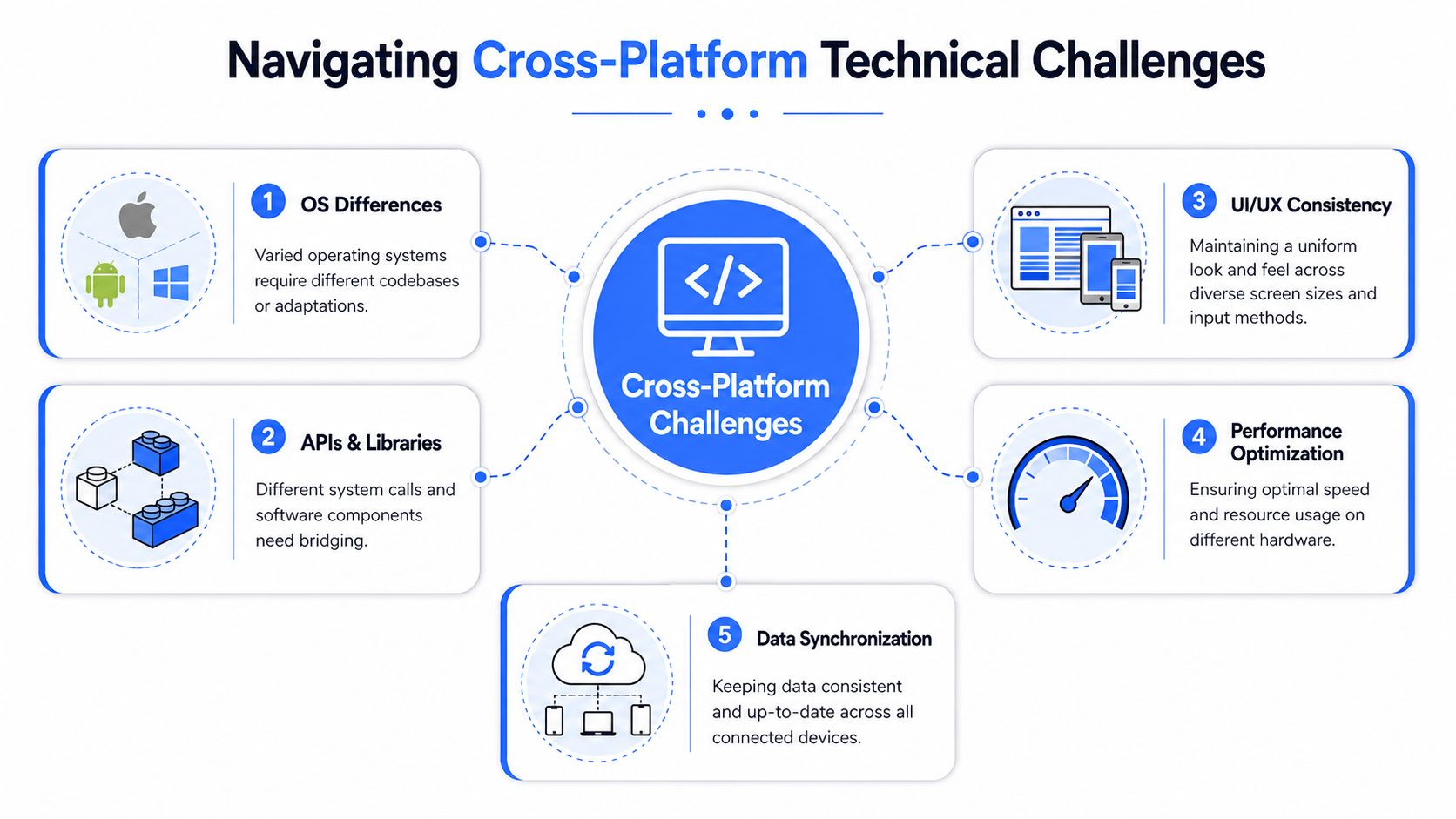
Once you look under the hood, the friction starts to make sense. A cross-platform app has to do more than draw the same buttons on two screens. It has to interact with two operating systems that speak different technical languages.
Apps have to speak two system languages
A useful analogy is a bilingual receptionist. The receptionist doesn't just know two vocabularies. They also know local customs, what counts as polite, which forms to fill out, and who to call for special access. Software faces the same problem.
APIs are part of that story. They're the official ways an app asks the operating system for help. One API handles a global shortcut. Another helps capture microphone input. Another tells the app what text field is active. macOS and Windows expose those abilities differently, so the app has to translate.
Audio is another hidden hurdle. If you use voice input, you want the app to hear you clearly and respond quickly. But microphone routing, permission handling, and background audio behavior don't work identically across systems. Two laptops can sit side by side on the same desk and still require different engineering to get stable voice capture.
Then there's the clipboard and input pipeline. Users tend to think text insertion is simple: speak, then words appear where the cursor is. In reality, apps insert text into native editors, browser text boxes, chat widgets, forms, rich text fields, and custom interfaces that each behave a bit differently.
Text insertion is where many tools stumble
Contextual compatibility becomes important. Existing coverage often talks about developer tools and frameworks, but it misses the user-facing problem of how voice-to-text software preserves accuracy and formatting inside fragmented interfaces like a CRM chat box or a web email composer. That gap is called out in MoldStud's discussion of cross-platform product challenges.
A few common failure points make this concrete:
- Rich text confusion: A sentence inserted into a plain text note works fine, but the same sentence lands in a web editor with broken line breaks or odd spacing.
- Focus drift: You dictate into one field, but another window steals focus and receives the text.
- Shortcut collisions: The app's trigger key clashes with an existing system or app shortcut.
- Accessibility blind spots: If the software can't correctly read what's active on screen, it can't reliably insert text in the right place.
Software can be accurate at transcription and still feel unreliable if it mishandles context.
Accessibility APIs matter here too. They give assistive and voice tools a map of what's on screen. That map isn't identical across platforms, so a feature that understands selected text, active fields, or available actions may need two separate implementations before it operates smoothly.
From a user standpoint, all of this collapses into one question: “Can I trust this app wherever I'm typing?” That trust is hard-earned.
How Developers Build and Test for Two Worlds
Reliable cross platform compatibility usually comes from architecture, not luck. The common practice is to avoid building two entirely separate products if possible. Instead, a shared core is built, then platform-specific layers are added to handle local behavior.
One shared core with local adapters
A universal engine operates with different steering systems. The shared core may handle core logic such as transcription flow, account state, settings, or text cleanup. Then local adapters translate that logic into each operating system's way of handling shortcuts, permissions, window focus, and text insertion.
That approach helps teams keep behavior aligned without pretending macOS and Windows are identical. It also makes room for platform-specific polish. A compatible app shouldn't ignore local expectations around menus, dialogs, or keyboard conventions.
Accessibility support is part of that polish. A team might use shared design principles while still doing separate implementation work to support high contrast mode with CSS, adapt to contrast settings, and make interface states readable across systems. Users may not notice that work when it succeeds, but they definitely notice when it doesn't.
Testing has to happen in messy real life
Automated tests help catch predictable breakage. They're good at checking whether a shortcut still triggers, whether a permission prompt appears, or whether a common text field accepts inserted content. But automation can't cover every real environment.
Human testing matters because real workflows are messy. People dictate into browser tabs with extensions installed. They use Slack, Salesforce, Google Docs, Outlook, Notion, and internal tools that behave in slightly different ways. They switch microphones, connect monitors, lock screens, and resume from sleep. That's where edge cases appear.
A good cross-platform team usually tests in layers:
- Automated checks: Fast validation of repeatable system behavior on both platforms.
- Manual QA: People try realistic tasks and look for friction, not just crashes.
- Beta feedback: Early users expose combinations no lab can fully reproduce.
If you want an example of platform-specific expectations in practice, speech-to-text on Windows shows how one operating system can shape setup, shortcuts, and daily usage patterns.
The hardest bugs often aren't spectacular failures. They're the little inconsistencies that make users stop trusting the tool.
That's why compatibility work is never only technical. It's observational. Teams have to watch how people move through their day.
Privacy Performance and On-Device AI
You use one laptop at home, another at work, and the same app behaves differently on each. On one machine it responds right away. On the other, it needs an internet connection, asks different privacy permissions, or suddenly cannot handle the language you need. That friction is part of compatibility too.
For voice tools, the question is simple. Where does the work happen? Some apps send audio to the cloud. Some process it on your computer. Some switch between both.
Privacy choices affect compatibility too
Cloud processing often feels more forgiving on older or less powerful hardware because the heavy work happens elsewhere. It can also support more languages and more advanced features. But that convenience comes with a tradeoff. Your audio leaves the device, and the app becomes more dependent on internet quality, company policy, and whether your workplace allows that kind of data flow.
Local processing solves a different user problem. It can keep dictation available on a plane, in a hospital, or on a locked-down corporate network. It can also reduce privacy concerns because sensitive speech stays on the computer. The limitation is breadth. Recent industry analysis notes that on-device AI models often support fewer than 20 languages, while cloud models can offer 99+, as discussed in WebAsha's analysis of cross-platform compatibility and integration.
That tradeoff shows up in real work faster than many people expect. A local-only setting may feel safer, but it can become a practical limit if you switch between English, Spanish, and German during the same day, or if your team expects accurate recognition for names, accents, and technical vocabulary.
Why a hybrid approach makes sense
For many users, the least frustrating experience is choice. Local processing covers private moments and offline work. Cloud features stay available when you need wider language support or stronger transcription quality.
That is why some tools use a mixed model. Voice Control Pro offers cross-platform voice-to-text on macOS and Windows, inserts transcription directly at the cursor, and includes local-only modes alongside cloud-enabled features. If you want a clearer explanation of how cloud and local speech recognition differ in everyday use, that comparison breaks down the tradeoffs.
You should not have to care about model architecture or inference pipelines. You care whether the app fits your day without adding hesitation.
Ask practical questions instead:
- Will it still work if your internet drops?
- Can sensitive speech stay on your device when needed?
- Does it support the languages and accents you use?
- Will performance feel similar when you switch between Mac and Windows?
Cross-platform compatibility is not only about whether an app launches on two operating systems. It is also about whether the app respects the conditions people work under, including privacy rules, hardware limits, and the need to keep going without surprises.
Your Compatibility Checklist for Any App
When you evaluate software, don't stop at “available on Mac and Windows.” That label only tells you the app exists in two places. It doesn't tell you whether the experience holds together.
Use this checklist instead.
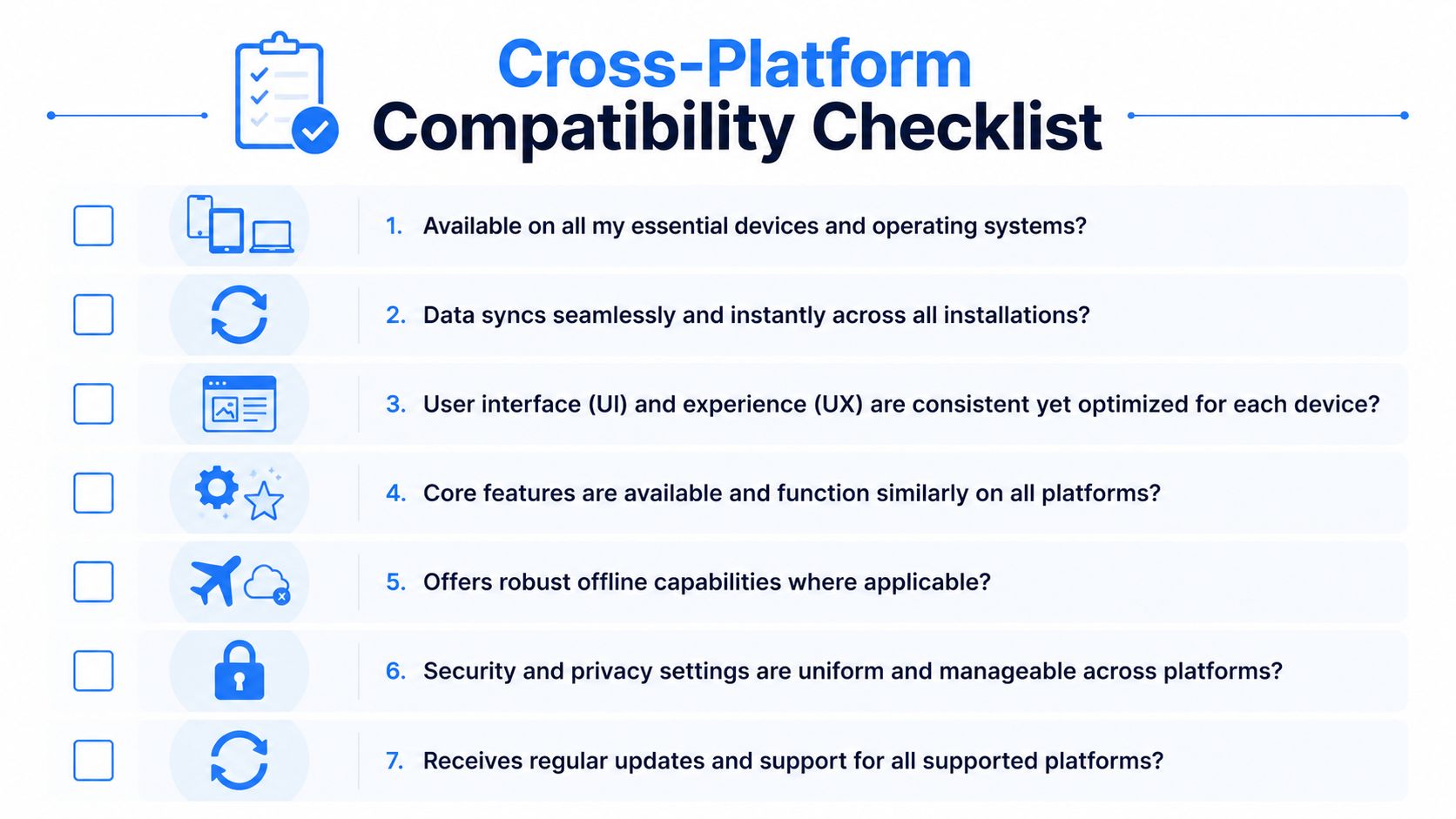
- Device coverage: Is it available on the operating systems you use, not just the ones listed in marketing copy?
- Feature parity: Do the core actions work on both platforms, or does one version feel like a stripped-down companion?
- UI consistency: Does it feel familiar when you switch machines while still respecting native shortcuts and conventions?
- Reliable text and data handling: Do your content, formatting, settings, and history stay intact across environments?
- Privacy options: Can you choose between local and cloud behavior when that matters for your work?
- Performance under normal use: Does the app stay responsive on both systems during real tasks, not just in a demo?
- Setup clarity: Is installation and permission approval straightforward on both macOS and Windows?
If an app saves you time on one computer but creates hesitation on the other, its compatibility story is incomplete.
This checklist works for voice tools, note apps, chat clients, design tools, and almost anything else you use all day. Good cross platform compatibility should feel boring in the best possible way. You stop noticing the platform and get back to the work.
If you regularly switch between macOS and Windows and want a voice input tool built for that reality, Voice Control Pro is worth a look. It supports direct text insertion across apps, offers local and cloud processing options, and is designed for people who want the same core workflow to carry across both computers.