
You've copied a paragraph from a PDF into a CRM, and it looks fine at first glance. Then the spacing shifts, a line break splits an address, a hidden character prevents a search from finding the contact, or an AI rewrite changes the meaning of a sentence. The visible mess is easy to fix. The invisible damage is harder to detect.
That's why cleaning up text isn't a single button or a synonym for trimming whitespace. It's a judgment call about what the text is for, which structure must survive, and how much intervention the content can safely tolerate. A customer note, a code snippet, a legal clause, and a dictated email all need different treatment.
Table of Contents
- Understanding What Text Cleanup Actually Means
- A spectrum of intervention
- The Foundation of Safe Text Normalization
- Separate visual clutter from structure
- Look for characters the eye can't see
- Using AI Tools to Polish Grammar and Style
- Match the instruction to the risk
- Voice Dictation Workflows for Faster Cleanup
- Let the first pass stay rough
- Keep sensitive work within its boundaries
- Creating a Practical Cleanup Checklist
- Use the least invasive option first
- Common Cleanup Mistakes to Avoid
Understanding What Text Cleanup Actually Means
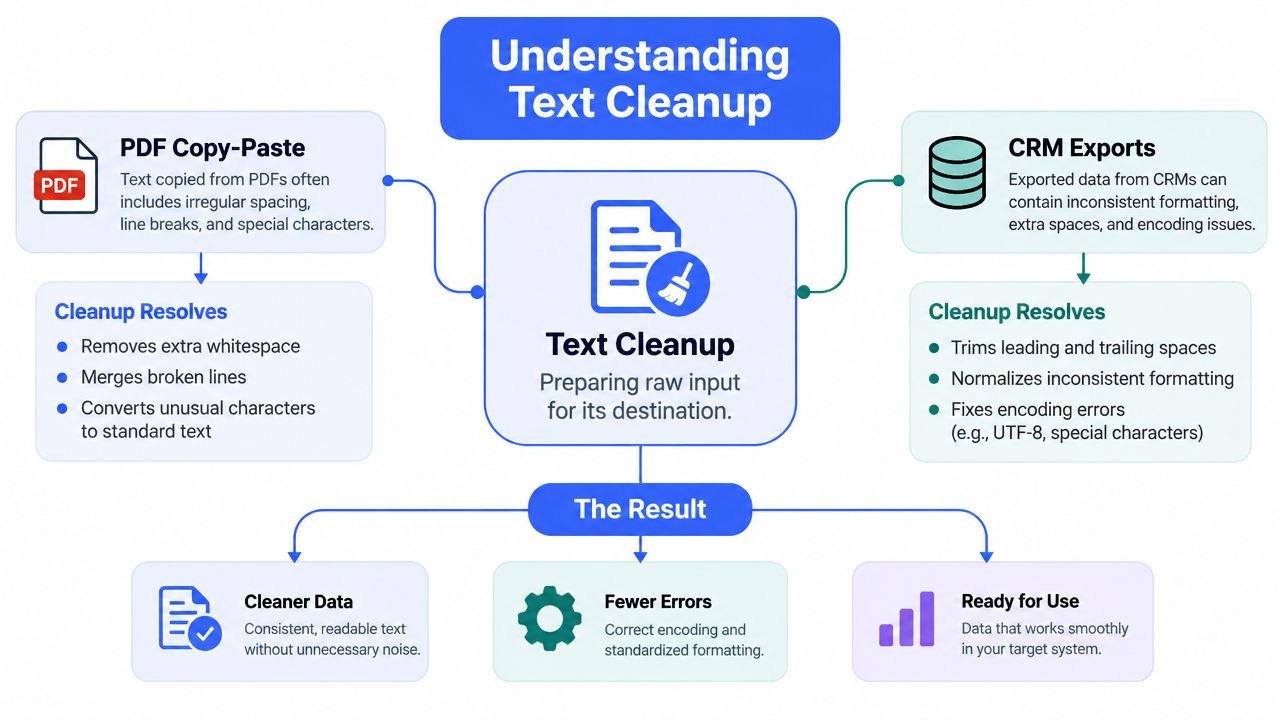
A useful cleanup process starts with the destination, not the mess. If you're pasting a paragraph into an email, removing repeated spaces and repairing broken line wraps may be enough. If you're importing a CRM export, preserving delimiters, fields, and record boundaries matters more than making the text look smooth.
Consider a common PDF paste. The text may contain hard line breaks at the edge of every visual line, nonbreaking spaces, copied header fragments, or Unicode characters that resemble ordinary punctuation but behave differently in a search or database. A quick “remove all line breaks” action can produce a readable paragraph, but it can also merge separate records, addresses, or list items.
Practical rule: Clean text for its next use, not for appearance alone.
The same principle applies to AI-generated drafts. An assistant may produce fluent prose with repeated phrases, filler transitions, inconsistent capitalization, or terminology that doesn't match your organization's vocabulary. Grammar correction improves the surface, but a proper editorial pass also checks whether the text still says what the writer intended.
A spectrum of intervention
Think of cleanup as a range:
- Light normalization removes accidental spaces, stray tabs, duplicated blank lines, and obvious formatting artifacts while preserving wording and layout.
- Editorial polishing corrects grammar, punctuation, capitalization, repetition, and awkward phrasing without changing the underlying message.
- Structural rewriting reorganizes paragraphs, converts notes into a coherent document, or changes the tone for a specific audience.
- Data transformation reshapes content for a system, such as separating fields, standardizing values, or preparing text for search and deduplication.
The farther you move along that spectrum, the greater the risk of unintended change. Keep an untouched original, record the type of intervention you applied, and inspect sensitive sections manually. Formal spoken records demonstrate why this matters. A 2024 quantitative study of parliamentary transcription cleanup found an edit distance of about 13% of words in the Japanese Diet and more than 20% in the European Parliament, showing that publication-ready text can differ substantially from raw speech.
The Foundation of Safe Text Normalization
Normalization is the quiet layer beneath good editing. It makes text consistent enough to read, search, compare, or import, but it shouldn't make editorial decisions that belong to a human.
Start by preserving the source. Duplicate the original before changing anything, especially when the text came from a contract, medical note, financial export, code repository, or customer database. Work on a copy so you can compare the result and recover information if a cleanup rule removes something meaningful.
Separate visual clutter from structure
Inspect whitespace in context rather than applying a universal replacement. Repeated spaces inside a paragraph are usually harmless artifacts. A blank line between paragraphs may be intentional. A line break between two list items may carry the entire structure of the list.
Use these checks:
- Trim edges first. Remove spaces and tabs at the beginning or end of lines.
- Collapse cautiously. Reduce repeated spaces inside ordinary prose, but avoid changing code indentation, aligned text, or fixed-width data.
- Review line breaks. Join lines only when the break came from visual wrapping rather than a meaningful boundary.
- Protect delimiters. In CSV-like content, commas, tabs, quotes, and newlines can define fields and records.
- Compare before importing. Open the cleaned version in the destination system or a validation view before replacing the original.
A safe workflow treats line breaks as evidence, not rubbish. Headings, bullets, addresses, table rows, and code blocks often look untidy in a pasted document because the source formatting was lost. Removing their breaks can make the result harder to parse and less useful than the original.
Look for characters the eye can't see
Invisible Unicode characters create another class of problems. Zero-width spaces, byte-order marks, nonbreaking spaces, and visually similar Unicode variants can interfere with search, deduplication, sorting, CRM matching, and automated prompts. A text field may look clean while containing characters that a downstream system treats differently.
Use a character-inspection tool or editor that can reveal code points when a search fails unexpectedly or two apparently identical values don't match. Normalize encoding consistently, but don't automatically fold accents or replace language-specific characters. Accent folding might help a broad search, yet it can damage names, terminology, or multilingual content when applied indiscriminately.
The text-cleaning guidance from TextTooling is useful for its central safety principle: retain the original and remove line breaks or blank lines only when they aren't meaningful. That principle is more valuable than any one-click preset.
Using AI Tools to Polish Grammar and Style
Once the text is structurally safe, AI can handle repetitive editorial work quickly. It's well suited to identifying sentence fragments, inconsistent punctuation, filler words, duplicated ideas, and abrupt changes in tone. It's less reliable when the task requires specialist context, legal precision, factual judgment, or a decision about whether an unusual phrase is intentional.
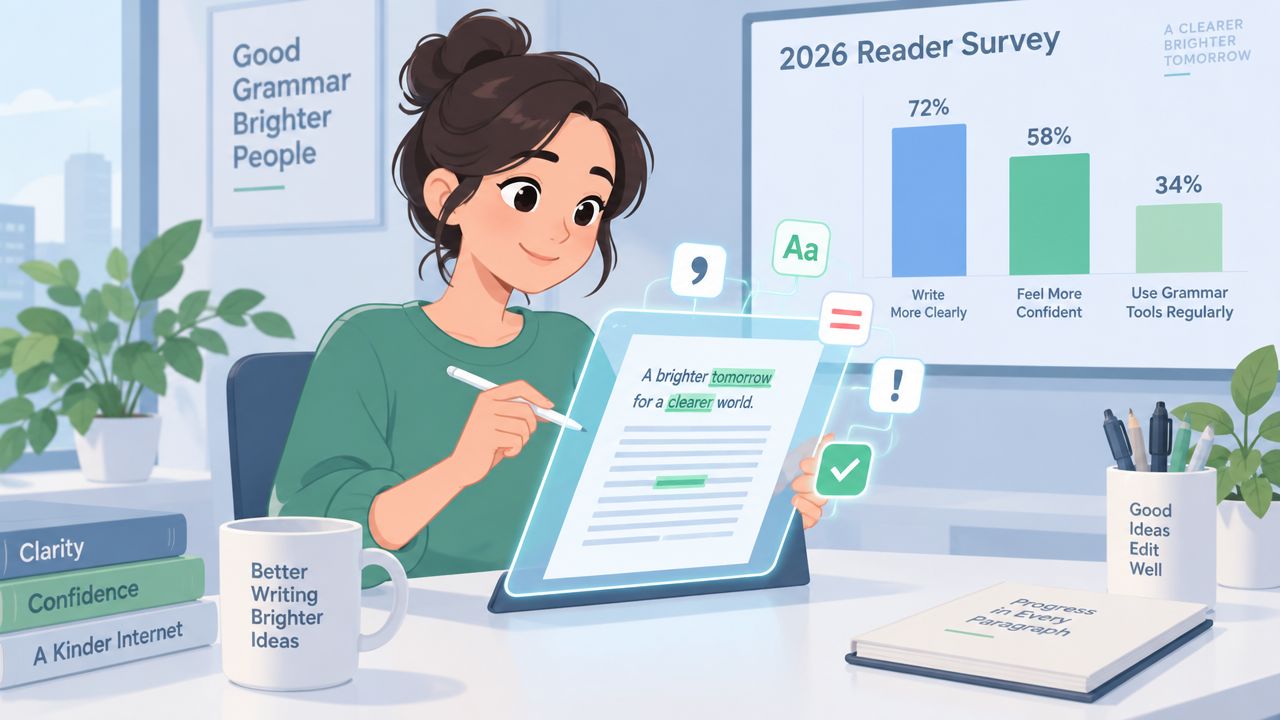
A 2026 survey reported that marketers using AI specifically for editing rose from 19% in 2025 to 38% in 2026, as documented by Wifitalents' editing industry statistics. The same source reported that drafting use fell from 57% to 44%, while brainstorming and outlining fell from 72% to 61%. The direction is important: teams aren't using AI only to create a first draft. They're using it increasingly to revise material that already exists.
Match the instruction to the risk
The quality of an AI cleanup depends heavily on the instruction. “Make this better” invites unnecessary rewriting. A constrained prompt gives the tool a defined job:
- Preserve all facts, names, figures, and technical terms.
- Correct grammar and punctuation only.
- Keep the paragraph order and sentence meaning.
- Mark uncertain changes instead of guessing.
- Return the revised text and a short list of material changes.
For a rough internal note, a structural rewrite may be appropriate. For a customer complaint, a contract clause, or a medical instruction, start with light editing and require a human review. If the text includes confidential information, check where processing occurs and whether the tool retains submitted content.
The human review isn't a formality. A controlled study summarized in the editing literature reported that professional proofreaders caught about 81% of nonword errors and 66% of word errors, while the best laboratory catch rate observed across studies reached 95%, according to Magic Words Editing's discussion of error catch rates. Automated cleanup can reduce effort, but neither an AI pass nor a human pass guarantees perfection.
For education teams reviewing written work, it can also help to understand how automated assessment workflows treat language and feedback. The resource on AI marking for UK exams offers useful context for evaluating where automation supports review and where professional judgment remains necessary.
A practical sequence is normalize, ask AI for constrained edits, compare changes, then approve. If you regularly move between drafting and revision, an AI writing assistant for desktop workflows can reduce the friction between composing and polishing, provided you still control the final wording.
Voice Dictation Workflows for Faster Cleanup
Dictation creates a different kind of messy text. Speech contains false starts, filler words, repeated phrases, unfinished sentences, and corrections made halfway through an idea. Trying to speak perfectly often slows thinking down, so the more productive approach is to separate capture from cleanup.
A useful workflow begins with a rough spoken draft. Dictate the email, support reply, report paragraph, or prompt without stopping to fix every phrase. Then select the text and apply a targeted cleanup instruction, such as “remove filler words and preserve my tone” or “make this concise without changing the request.”
Let the first pass stay rough
Voice Control Pro is one example of this workflow. It inserts transcribed speech where the cursor is, and its built-in Hey Max assistant can rewrite selected text, answer contextual questions, analyze what's on screen, and launch installed apps by voice. That combination matters because the user can move from capture to revision without repeatedly switching windows.
A support agent might dictate a response like this:
“Hi, thanks for reaching out. I checked the order and it looks like, well, the shipment was delayed because the warehouse had an issue, but it should be moving now, and we'll keep an eye on it.”
The cleanup instruction should define the desired result, not merely request improvement: “Remove spoken filler, keep the apology, state the delay clearly, and don't promise a delivery date.” The editor can then check the order status, confirm the wording, and send a response that remains accurate.
The distinction between transcription and editorial assistance is important. A transcription engine records speech. A cleanup workflow decides how much of that speech belongs in the finished message. Those are separate decisions and shouldn't be hidden inside an aggressive automatic rewrite.
Keep sensitive work within its boundaries
Privacy changes the tool choice for internal business communication, customer records, and draft documents. Voice Control Pro's Fly Mode runs processing locally on the computer and pauses cloud features, while its local mode provides dictation through an on-device AI model. That makes local processing an option when text shouldn't leave the device, though teams should still review their own security requirements and software permissions.
Use a repeatable voice command rather than an open-ended request. “Fix punctuation only” is safer than “rewrite this.” “Shorten to three sentences and preserve the product name” is safer than “make it professional.” For a more detailed review of this kind of workflow, see how to proofread dictated text faster on desktop.
A strong dictation loop is fast because it limits decisions at each stage: speak freely, normalize the transcript, polish the selected passage, verify names and facts, then send or save. Speed comes from reducing interruptions, not from removing review.
Creating a Practical Cleanup Checklist
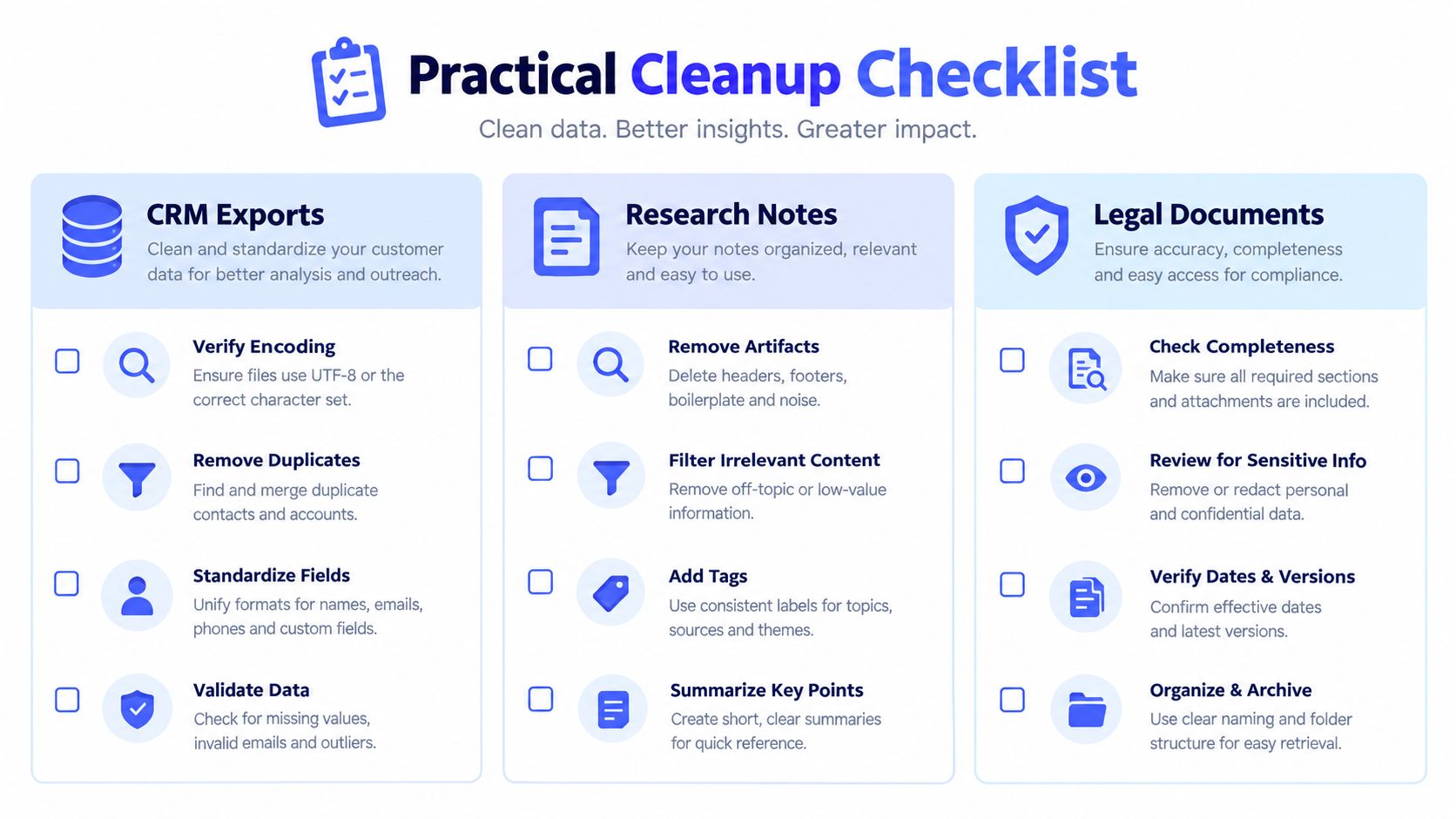
A reliable checklist should change according to the source. The right question isn't “Which cleaner should I use?” It's “What can change safely, and what must remain exactly as supplied?”
| Source | Safe first pass | Review manually |
|---|---|---|
| CRM export | Normalize spacing and encoding | Fields, delimiters, IDs, addresses |
| Research notes | Remove obvious artifacts and organize headings | Quotes, citations, interpretation |
| Legal documents | Correct visible formatting only | Every clause, defined term, and numbering sequence |
Use the least invasive option first
For ordinary prose, begin with whitespace and punctuation. For notes, separate fragments into headings or bullets only after confirming that the grouping reflects the writer's meaning. For system imports, validate the cleaned file against the expected field structure before uploading it.
A practical checklist looks like this:
- Keep the original: Save the untouched source with a clear filename.
- Identify the destination: Decide whether the output is for reading, editing, search, or import.
- Inspect structure: Mark paragraphs, lists, tables, addresses, code, and record boundaries.
- Normalize lightly: Fix spacing, encoding inconsistencies, and accidental formatting artifacts.
- Polish selectively: Ask an AI or editor to correct only the issues the destination requires.
- Compare versions: Check changes rather than trusting a clean-looking result.
- Verify sensitive details: Recheck names, dates, figures, citations, commands, and legal wording.
- Test the output: Search it, paste it into the target application, or run the relevant import validation.
The final review deserves its own step because editing errors are often contextual. A tool may correct a misspelling into the wrong word, change a product name, or smooth out a phrase that carries a specific technical meaning. Professional proofreaders themselves miss some errors, as the catch-rate evidence above shows, so high-consequence text needs comparison and subject-matter review rather than a single automated pass.
Common Cleanup Mistakes to Avoid
The most damaging mistake is treating every line break as waste. In prose copied from a PDF, some breaks are visual artifacts. In code, lists, addresses, CSVs, and legal numbering, they may define meaning. Remove them blindly and you can create a document that looks cleaner while becoming less accurate.
The second mistake is asking for a deep rewrite when you only need correction. Light normalization preserves structure. Grammar polishing improves expression. Structural rewriting changes organization and emphasis. Those operations shouldn't be bundled together unless you're prepared to review every sentence.
Other common failures include:
- Overwriting the source: You lose the ability to identify or restore a removed detail.
- Trusting visual similarity: Hidden Unicode characters can still disrupt search and imports.
- Using vague AI prompts: The tool may alter tone, facts, or terminology unnecessarily.
- Skipping destination testing: Text that reads well may fail inside a CRM, spreadsheet, or code editor.
- Reviewing only grammar: A polished sentence can still contain an incorrect name, claim, or instruction.
For a focused example of a narrow correction task, capitalization correction guidance shows why a specific transformation is safer than an unrestricted rewrite.
Voice Control Pro lets you dictate directly into the app you're using, then clean up or rewrite selected text with Hey Max without breaking your working flow. Try the Voice Control Pro workflow for emails, notes, reports, support replies, and prompts, using local processing when privacy requires a lighter footprint.